

Source data into hubsell
Get contacts into a hubsell list from a LinkedIn or Sales Navigator search, or from a CSV file, then tag and enrich them ready for outreach.
- Applies to
- All plans
- Before you start
- For LinkedIn sourcing, LinkedIn connected through the hubsell plugin. For CSV sourcing, a file with column headers and either a LinkedIn URL or an email address in every row.
You can source data into hubsell from a LinkedIn search, a Sales Navigator search, or a CSV import. hubsell removes contacts you already have, so add a tag on every import to keep track of what came in when.
Source from a LinkedIn or Sales Navigator search
-
Go to Lists, click Add data and select LinkedIn.
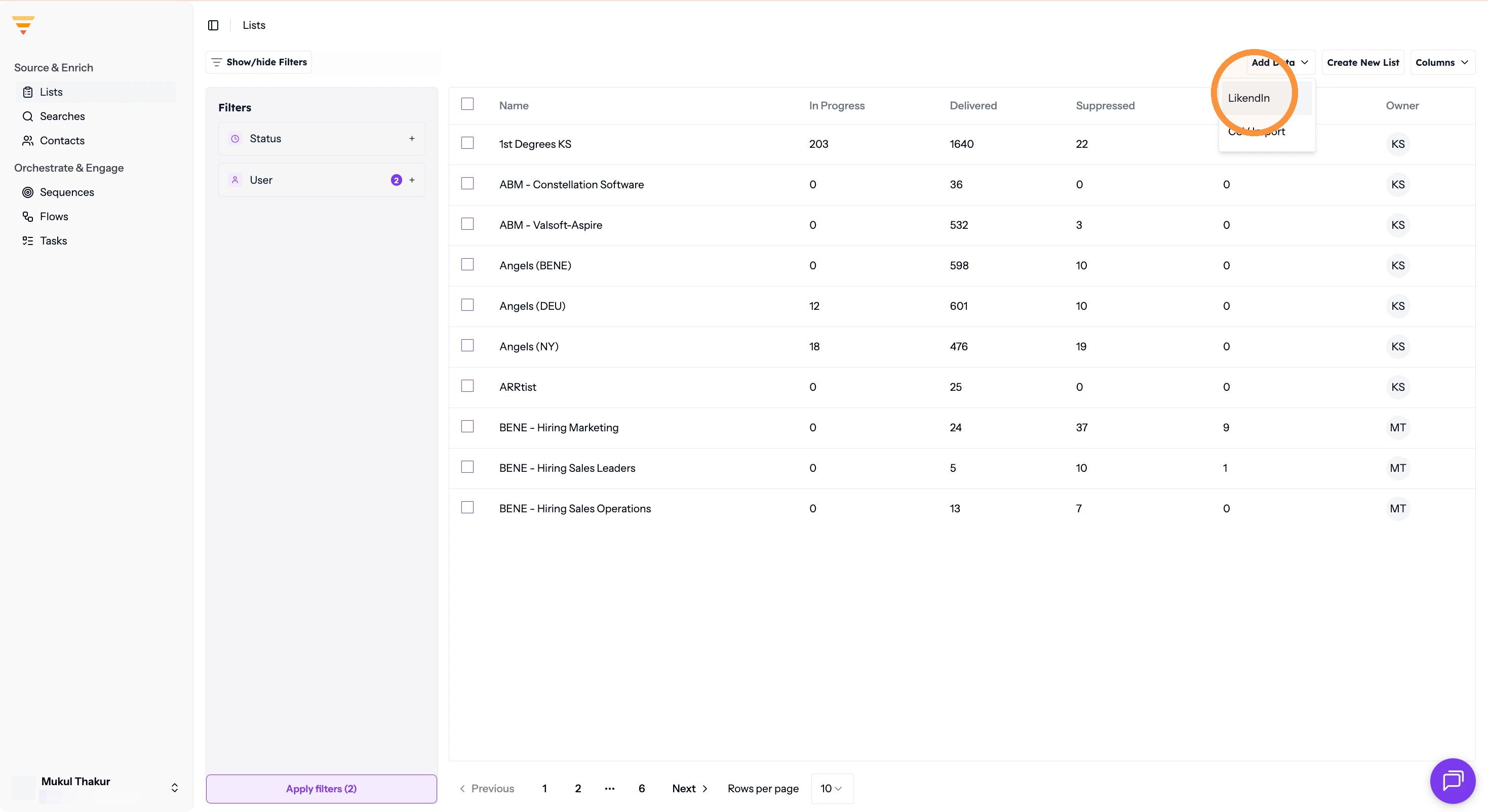
Adding data from LinkedIn -
To add to an existing list, select the list name. To start a new one, click Create new list and type the name.
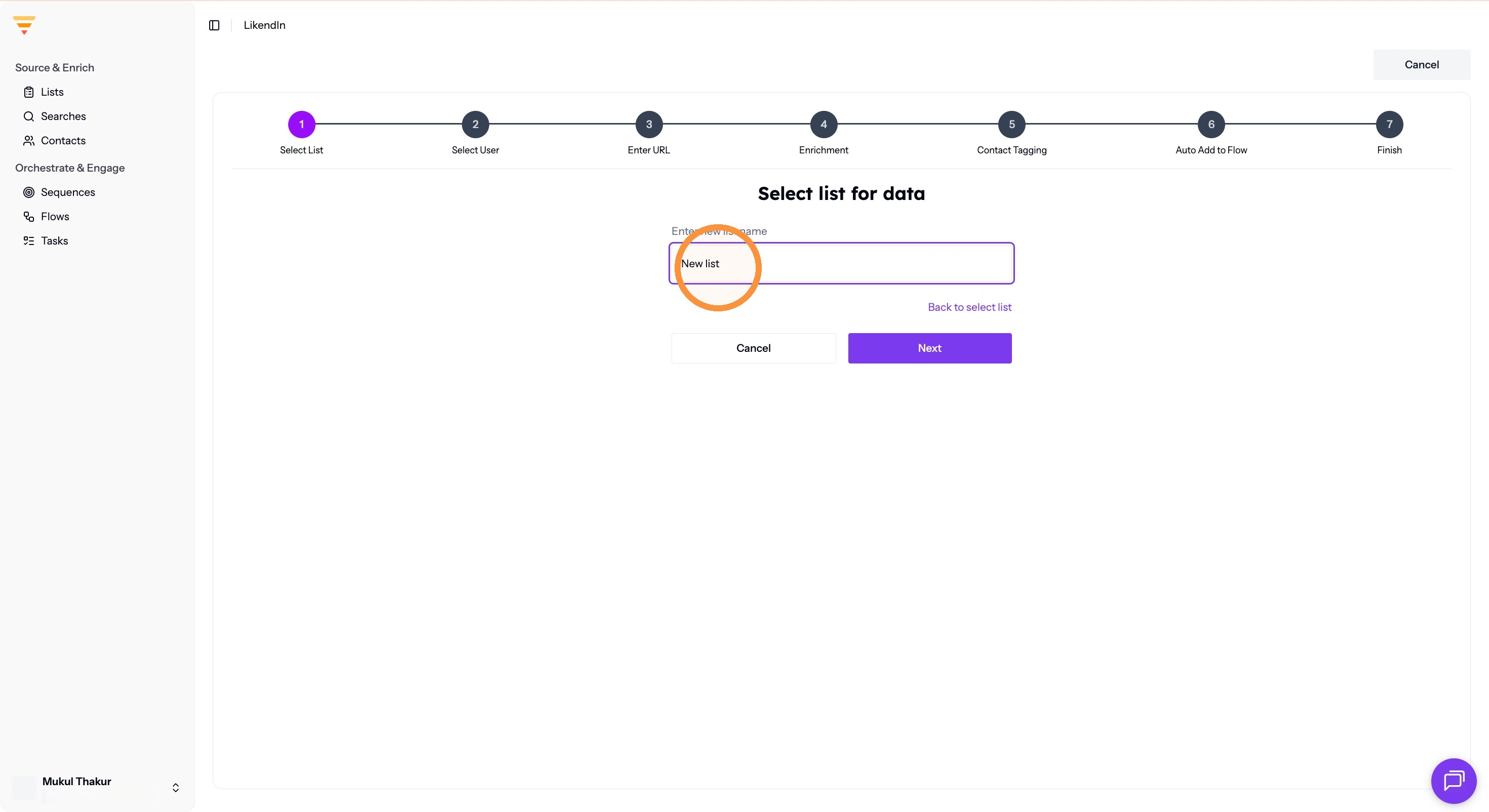
Choosing or naming your list Click Next.
-
Select the user this data should be assigned to.
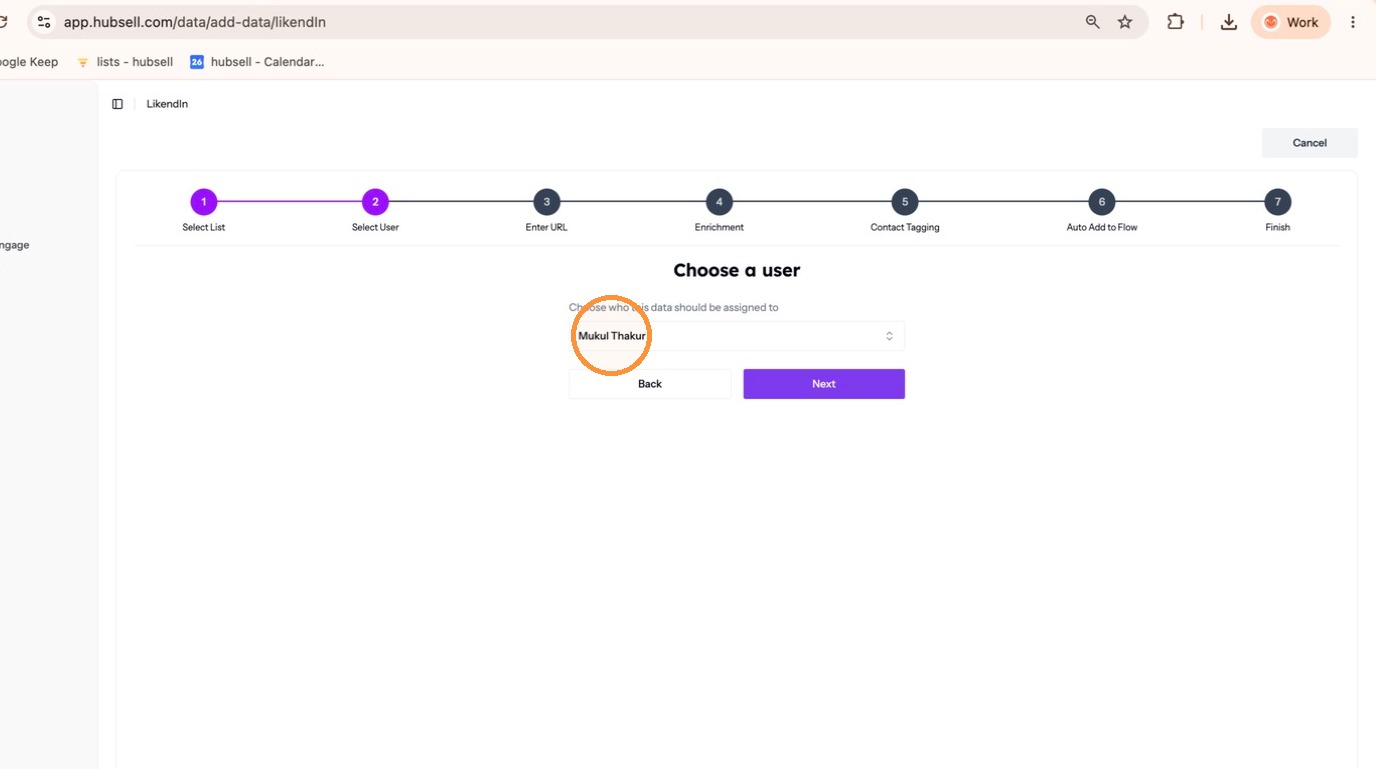
Assigning the data -
In LinkedIn or Sales Navigator, run the search that returns your target customers and copy the search URL.
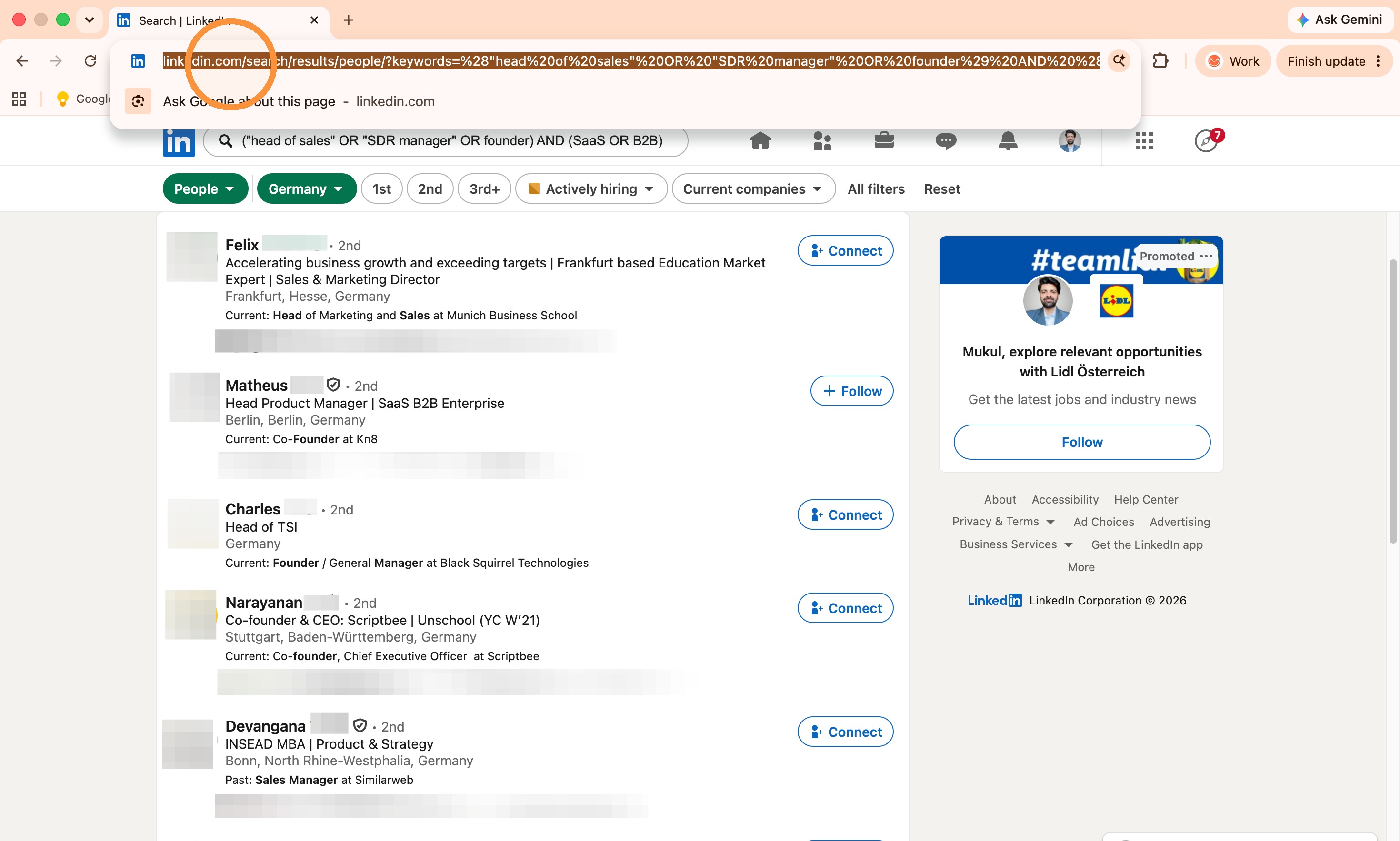
Copying your search URL -
Paste the URL into the URL box.
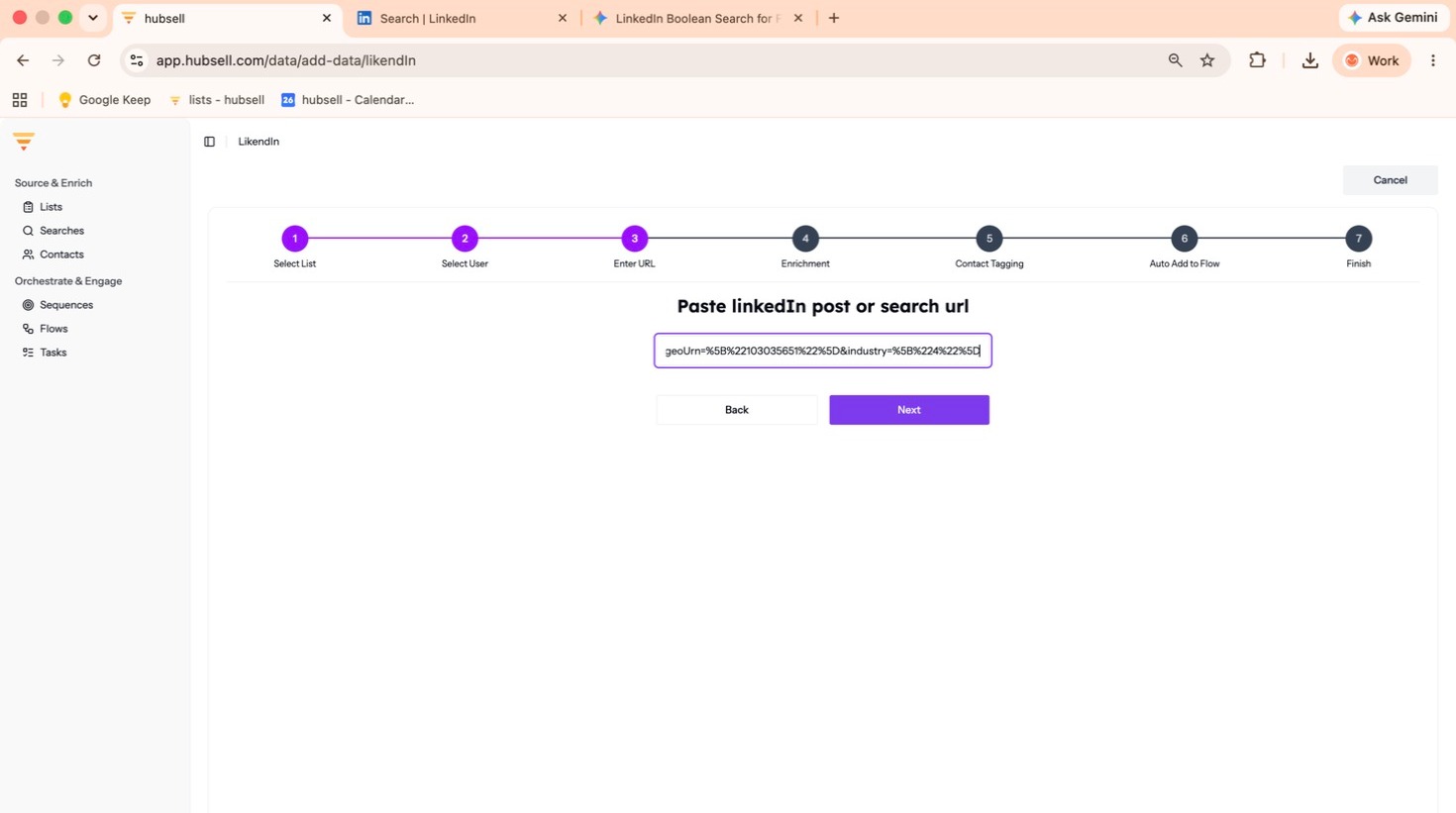
Pasting the URL -
Select the enrichment level you need.
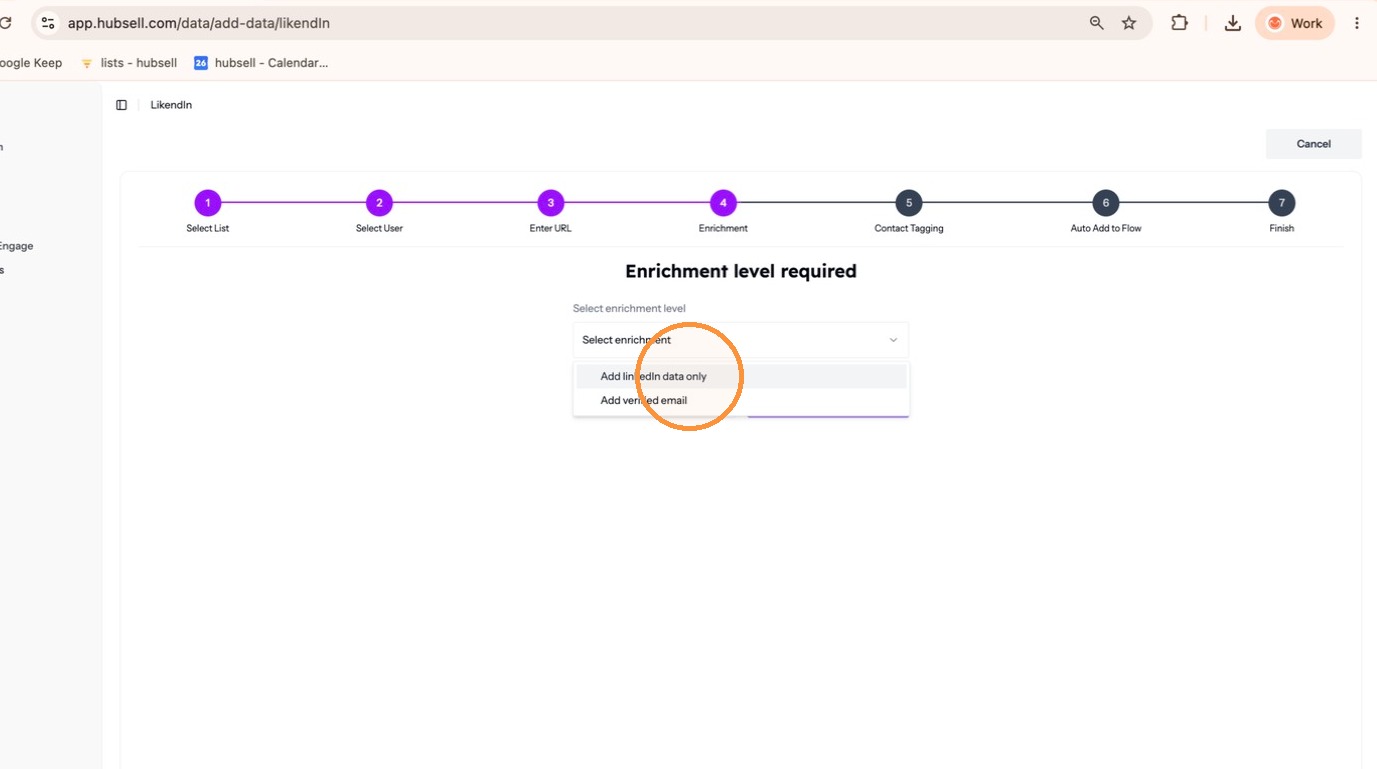
Choosing the enrichment level -
Add a tag so you can find this batch later. Choose an existing tag or click + to create one.
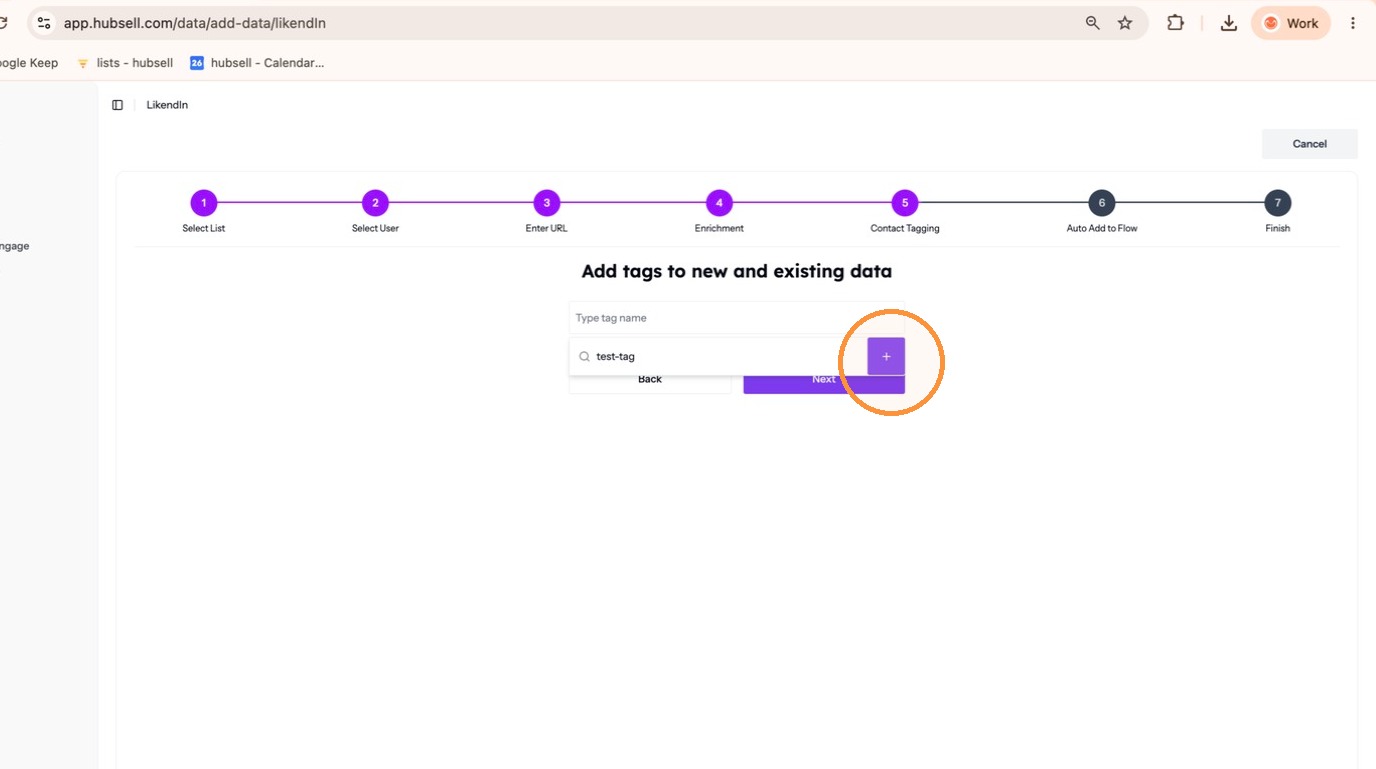
Tagging the batch -
Decide whether to assign these contacts to a flow now or continue without one. Suppressing contacts first cleans up the list before they enter a flow.
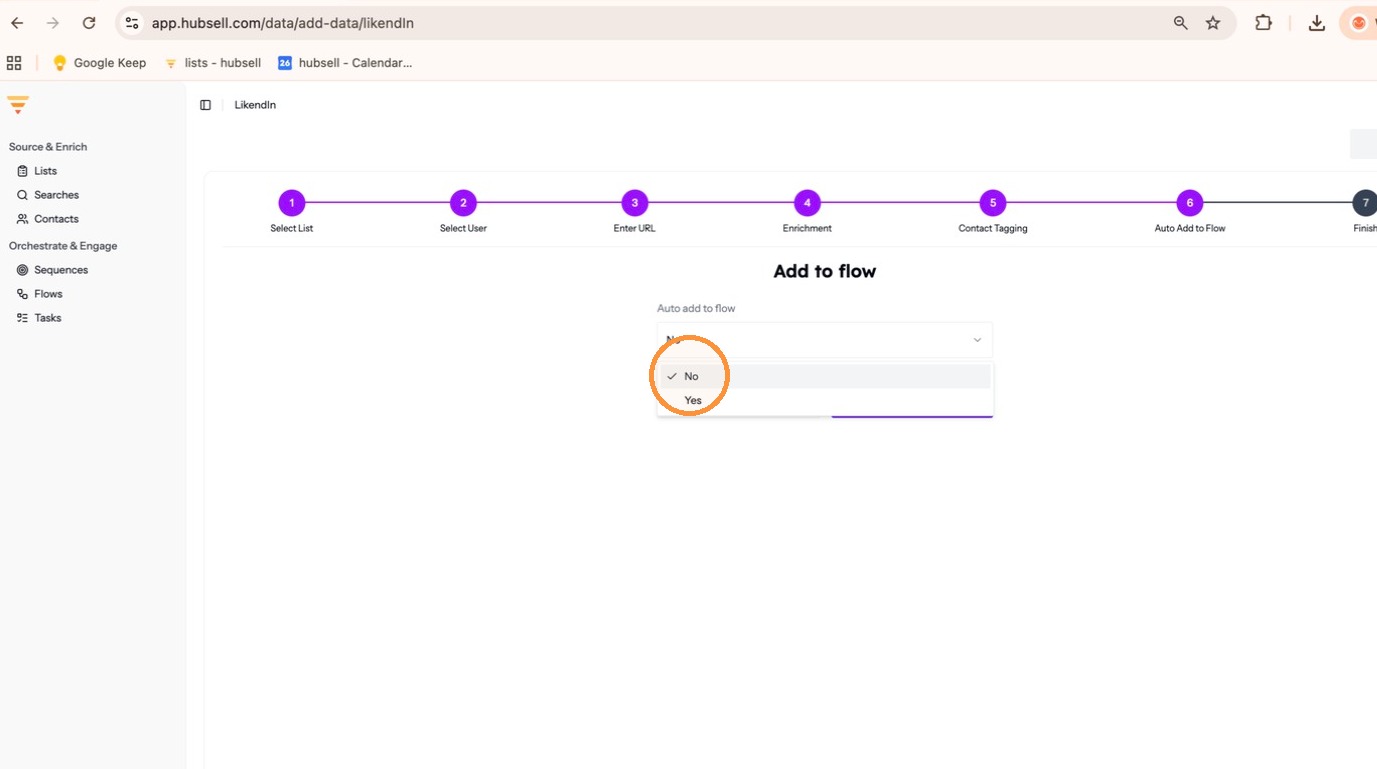
Choosing a flow, or not -
Click Submit, then click Finish.
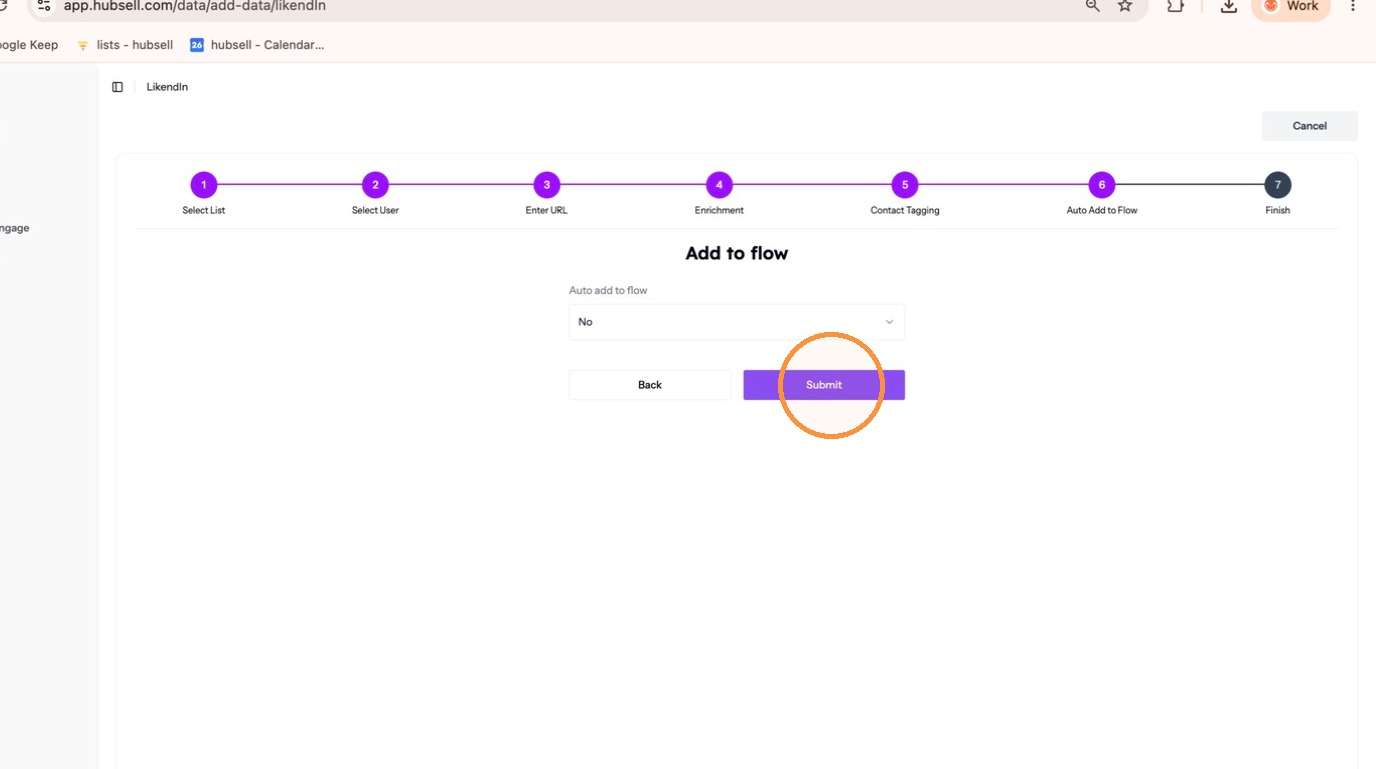
Submitting -
Go to Searches and find your list name. Wait a few minutes and refresh. A status of Active means sourcing has started.
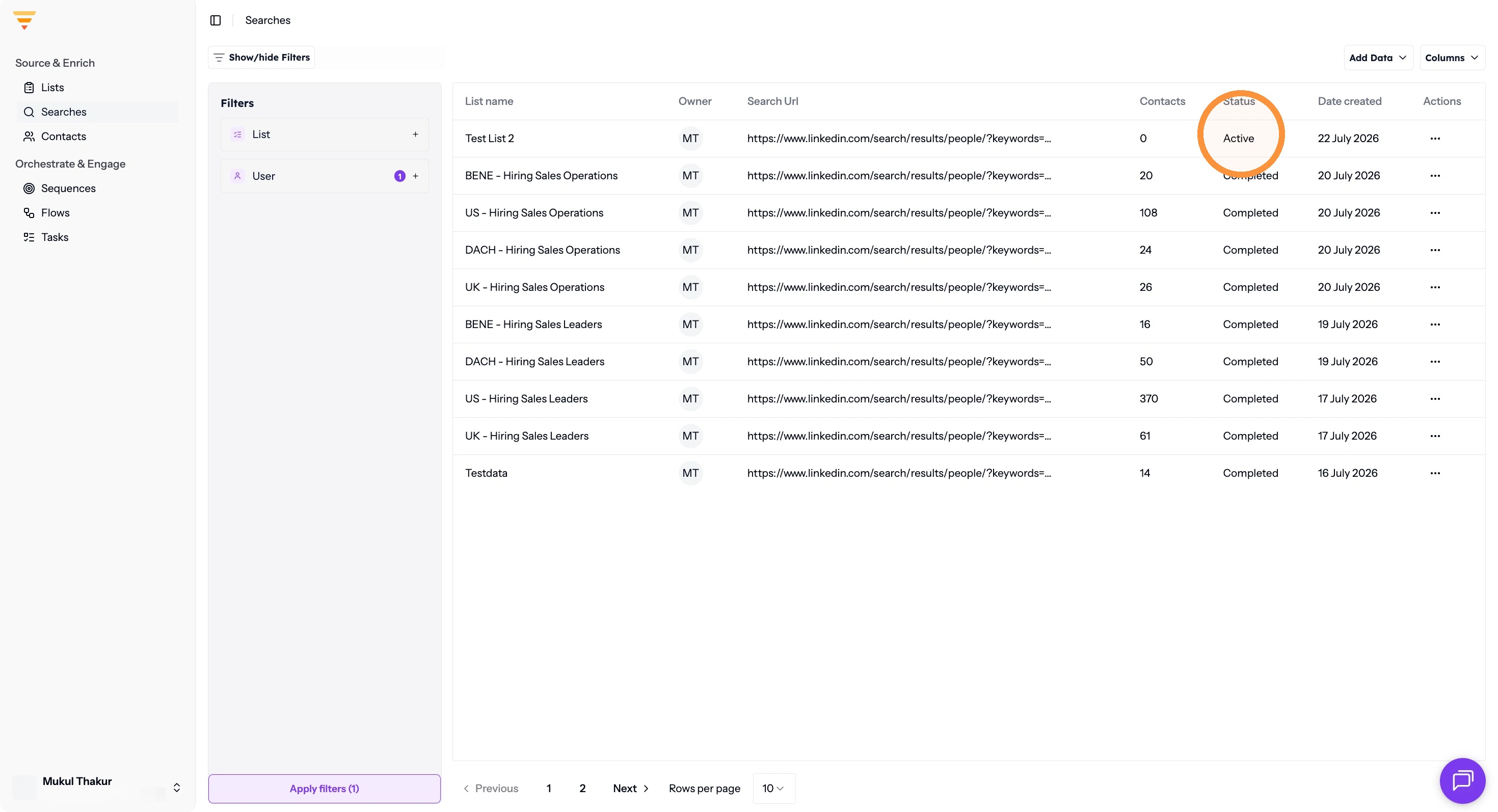
Checking the search status -
To see the contacts, go to Lists and click the number in the Delivered column.
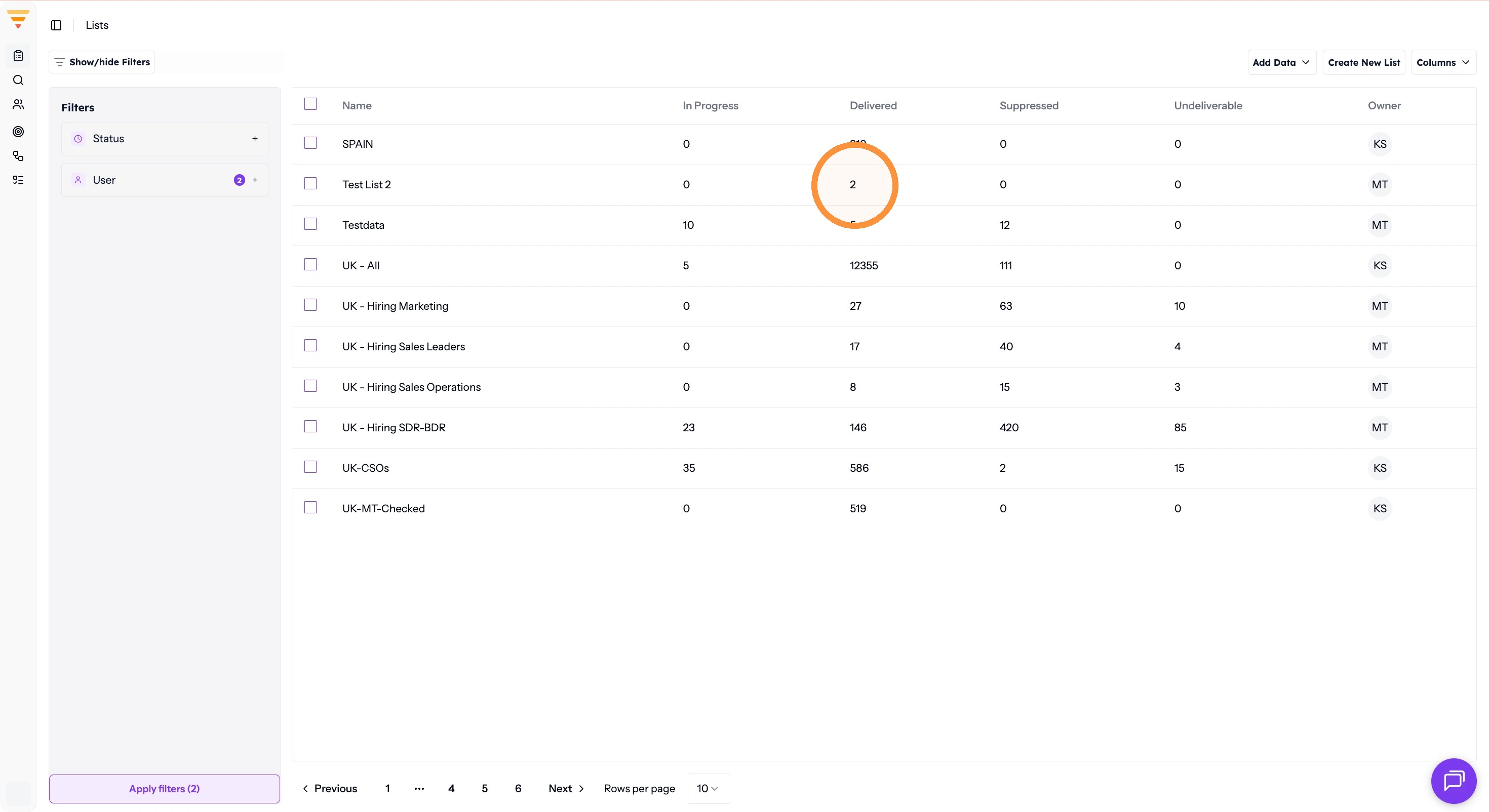
Opening the delivered contacts
Source from a CSV import
-
Go to Lists, click Add data and select CSV.
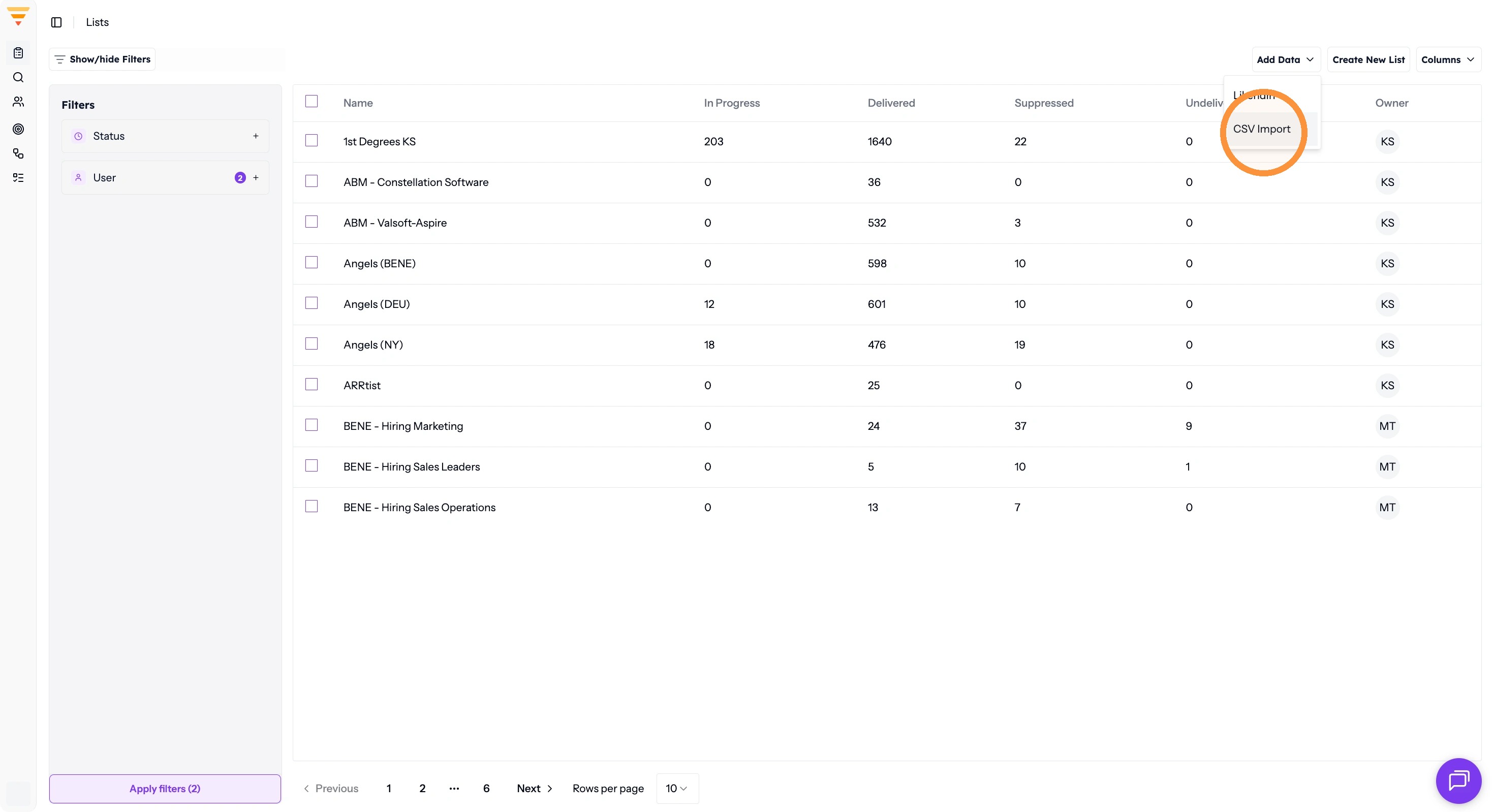
Adding data from a CSV -
Select an existing list or create a new one, then click Next.
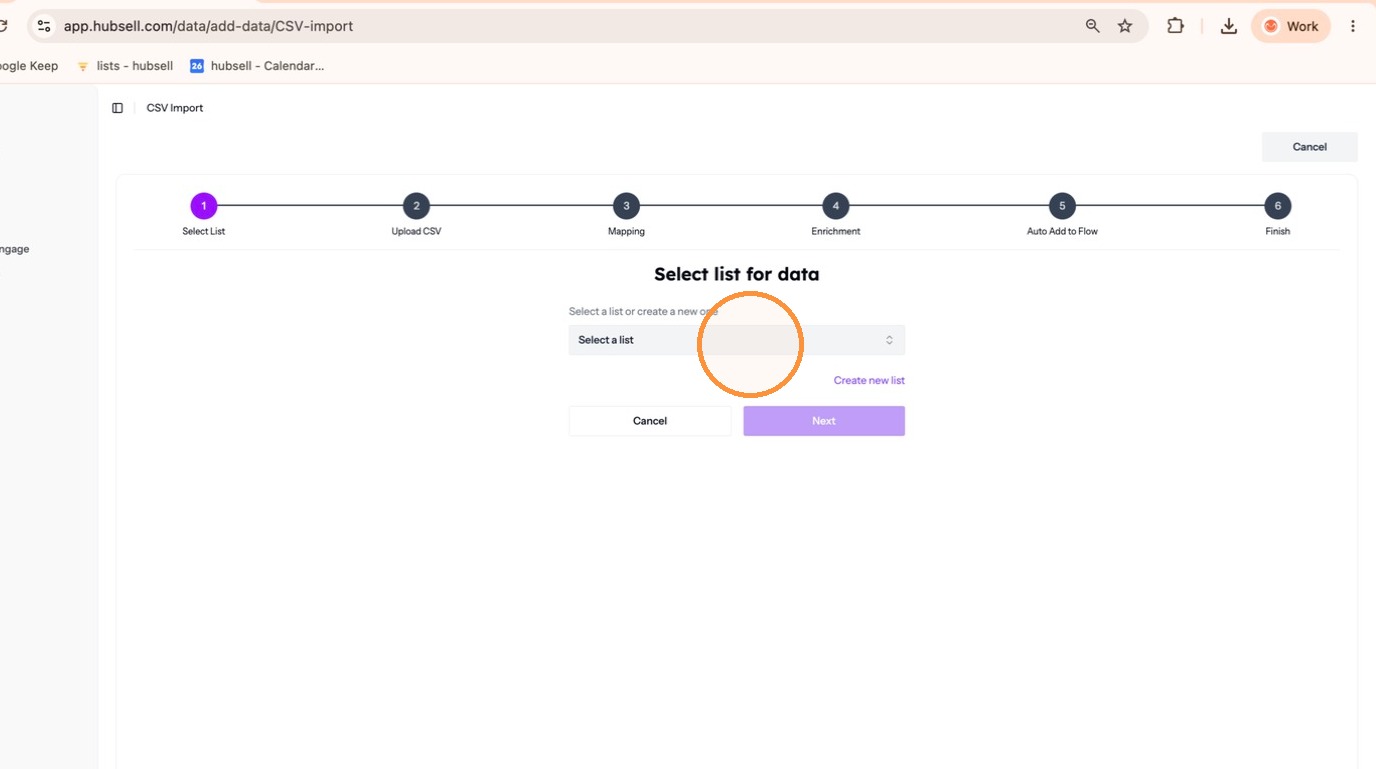
Choosing your list -
Check your file before you upload it. Every column needs a header, and every row needs either a LinkedIn URL or an email address. If any names contain characters such as é, á or ó, save the file as CSV UTF-8.
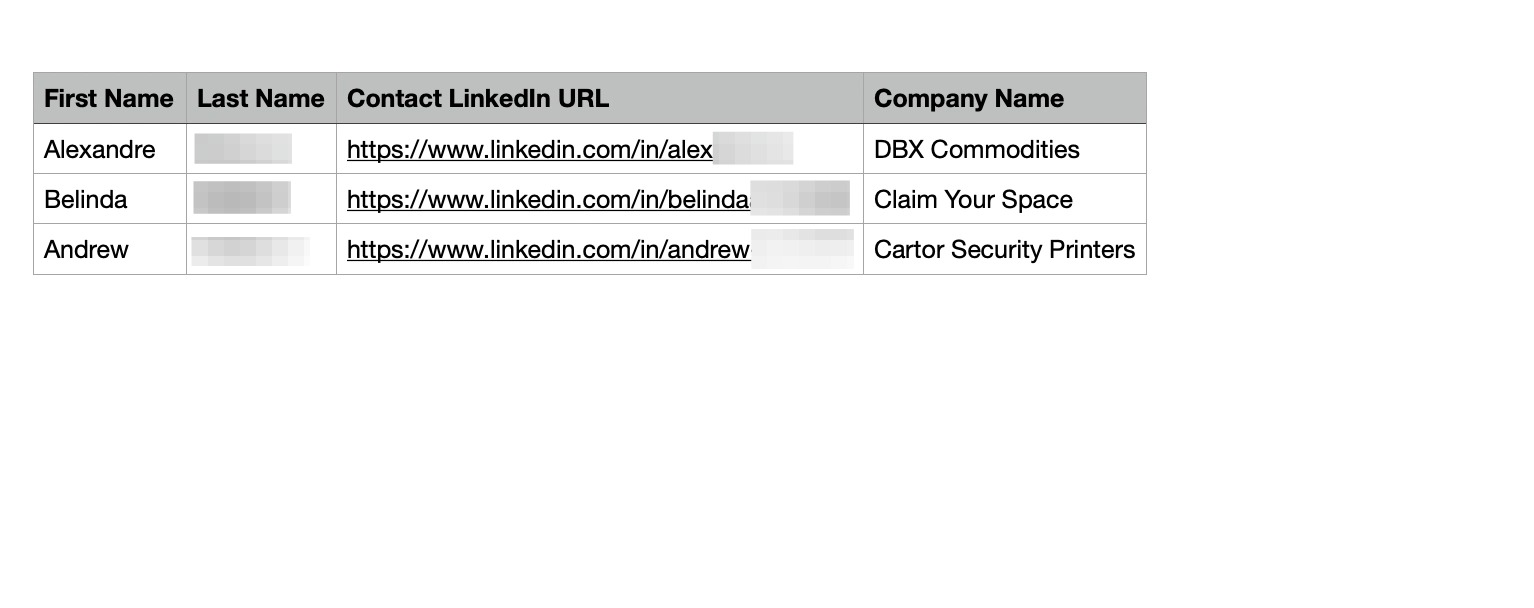
What your CSV needs -
Upload the file and click Next.
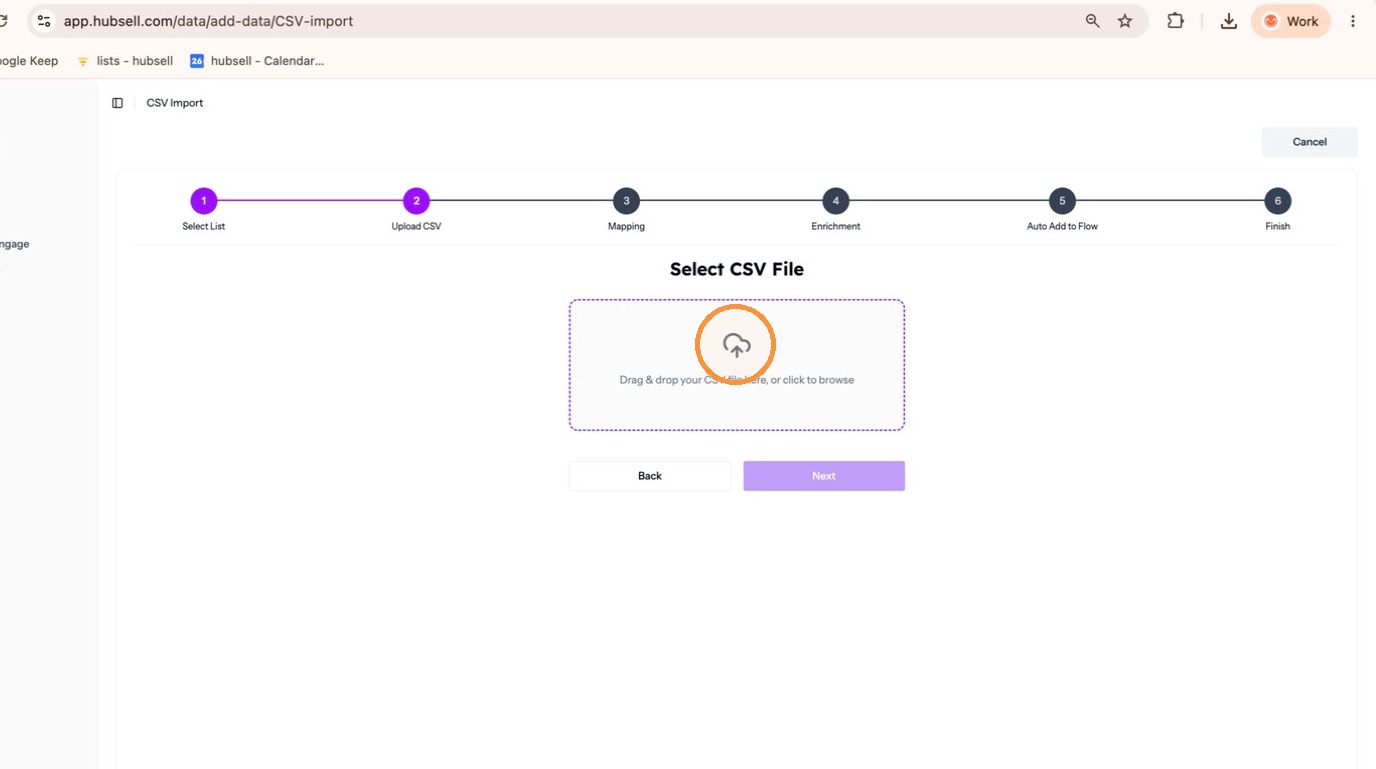
Uploading your file -
Map the columns in your file to hubsell fields, then click Next. Anything without a matching hubsell field can be mapped to Custom Variables.
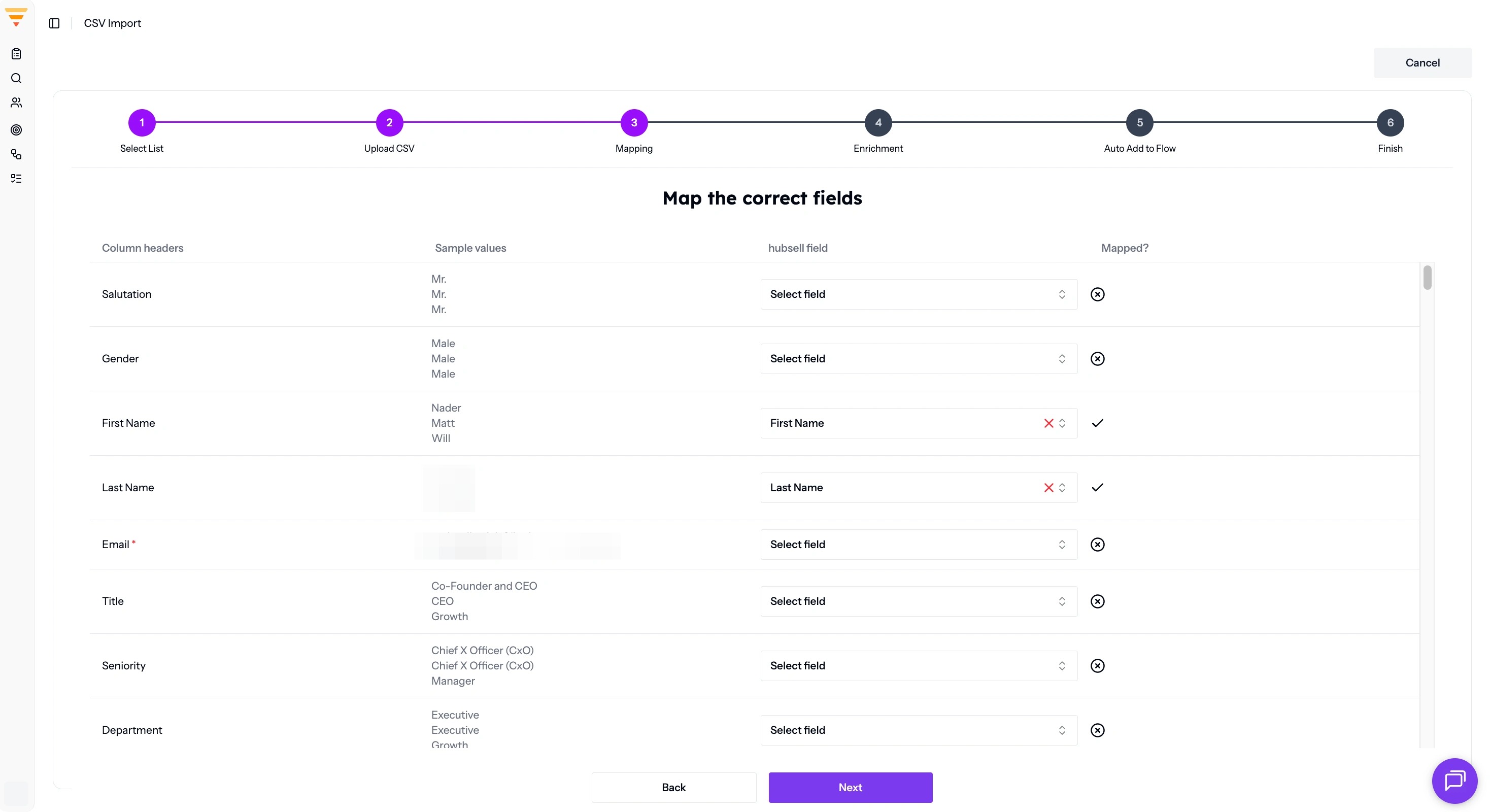
Mapping your columns -
Choose an enrichment type, or skip enrichment.
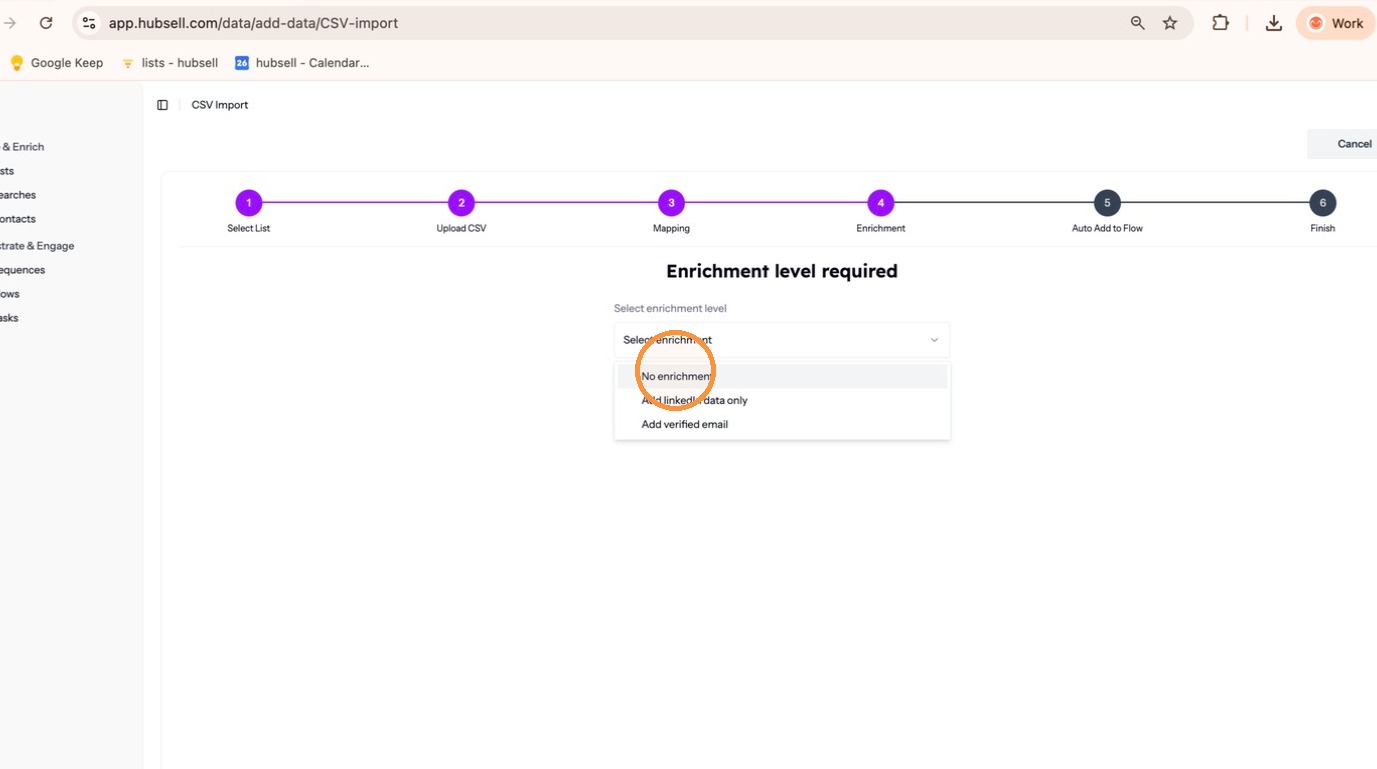
Choosing enrichment -
Choose whether the contacts should go into an existing flow.
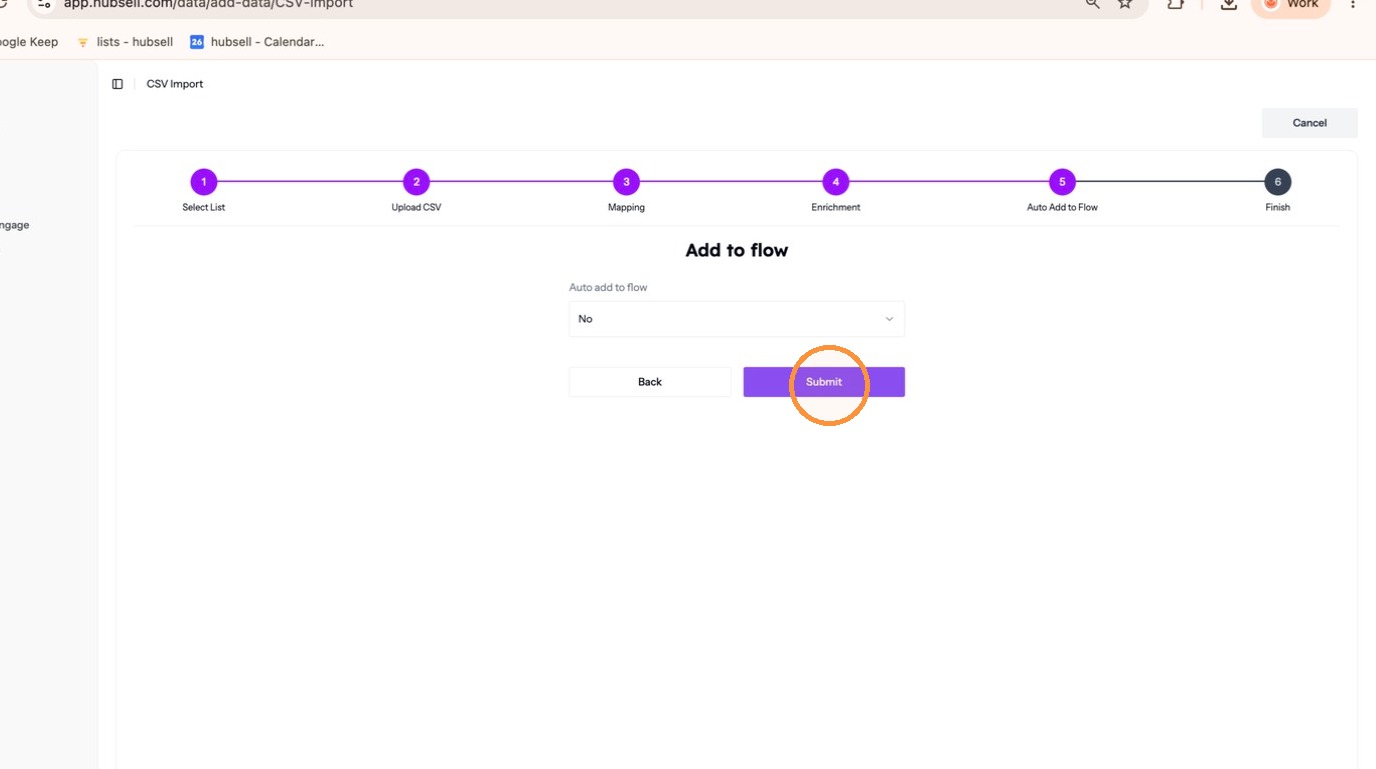
Choosing a flow -
Click Finish. The imported contacts appear under Lists.
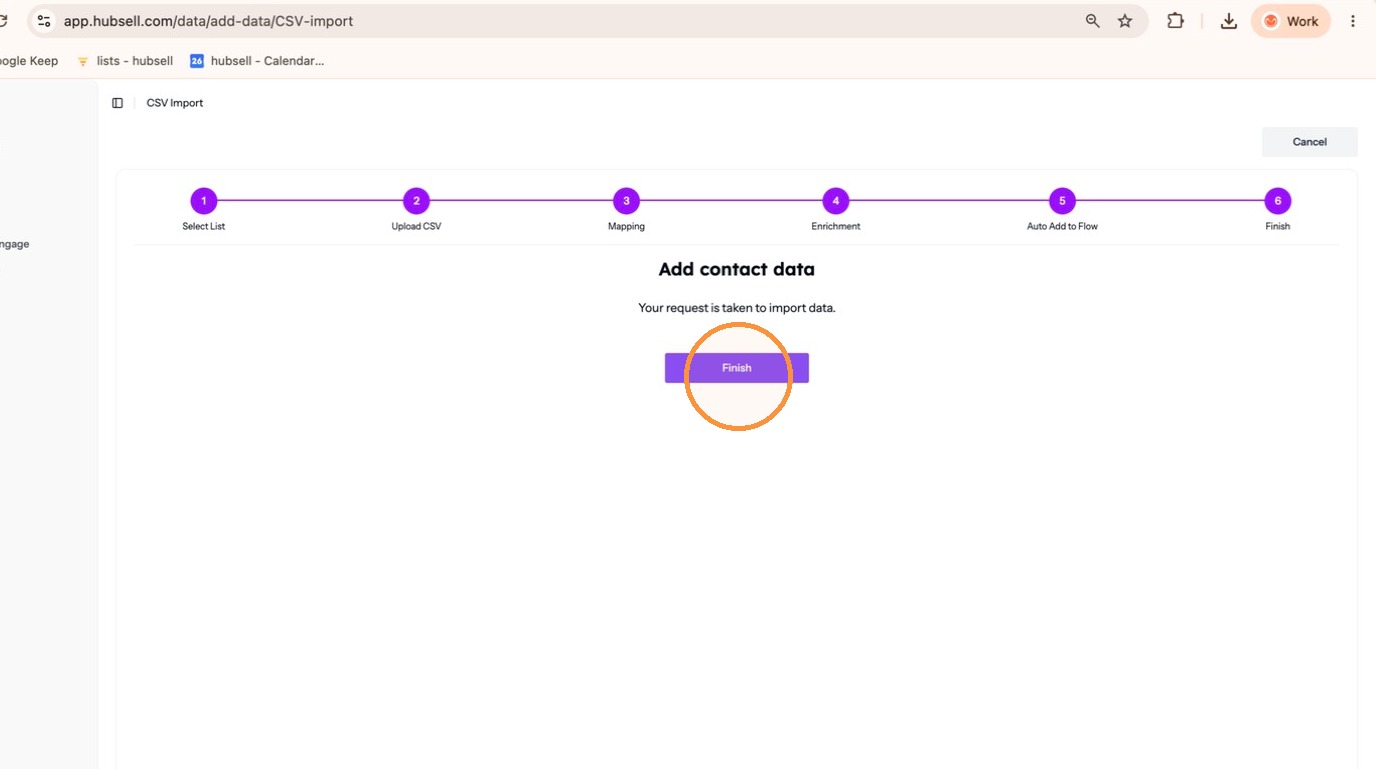
Finishing the import
Your contacts are in hubsell. Your list appears under Lists with a count in the Delivered column, and the matching entry under Searches moves from Active to Completed.
Timings to expect
- Background deduplication on a LinkedIn or Sales Navigator search takes 15 to 20 minutes, depending on list size.
- CSV deduplication takes roughly 20 to 30 minutes per few hundred contacts.
Troubleshooting
- Fewer contacts arrived than there were rows in the file. This is expected. hubsell removes contacts you already have and skips rows with a broken LinkedIn URL or a missing mandatory field.
- You cannot tell which contacts came from this import. Tag every import. Without a tag, deduplication makes a batch hard to identify afterwards.
- The CSV import failed. Check that every column has a header and that every row has a LinkedIn URL or an email address.
- Names show as garbled characters. Excel can strip the encoding. Save the file as CSV UTF-8 and import again. If the contacts are already in, run LinkedIn enrichment to overwrite the corrupted names with the correct profile data.
- A search is stuck on Paused. The LinkedIn or Sales Navigator session has gone out of sync. Disconnect and reconnect LinkedIn from the hubsell plugin.
- Contacts entered a flow before you had checked them. Suppress contacts during LinkedIn or Sales Navigator sourcing so poor fits are removed before they reach a flow.
Interactive walkthrough
Click through every step at your own pace.
The walkthrough loads from Scribe only after you click, so nothing third party runs on the page until then.
Common questions
How long does deduplication take?
Background deduplication on a LinkedIn or Sales Navigator search takes 15 to 20 minutes depending on list size. CSV deduplication takes roughly 20 to 30 minutes per few hundred contacts.
What does my CSV file need?
Every column needs a header, and every row needs either a LinkedIn URL or an email address. If any names contain characters such as é, á or ó, save the file as CSV UTF-8.
Why did fewer contacts arrive than there were rows in my file?
This is expected. hubsell removes contacts you already have and skips rows with a broken LinkedIn URL or a missing mandatory field.
Related articles
- Set up your personal and company accountComplete your personal profile and your company profile in hubsell. It takes about two minutes and gets both ready before you connect a mailbox.
- Connect your mailbox and LinkedInConnect the mailbox and LinkedIn account hubsell sends from, so it can send email and run LinkedIn actions for you.
- Connect your CRM accountConnect HubSpot, Salesforce or Pipedrive to hubsell so you can push contacts across when you are ready.
- Create a flowBuild your first multichannel flow in hubsell: triggers, branches, LinkedIn and email steps, wait times, sending limits, and launch.