

Connect your mailbox and LinkedIn
Connect the mailbox and LinkedIn account hubsell sends from, so it can send email and run LinkedIn actions for you.
- Applies to
- All plans
- Before you start
- A hubsell account you can log in to, a Google or Microsoft mailbox, and Google Chrome for the LinkedIn plugin.
Supported mailbox providers are Google and Microsoft. The steps below show the Google flow. Microsoft follows the same path, with the Microsoft sign in screen instead.
Connect your mailbox
-
Click your profile name at the bottom of the left sidebar.
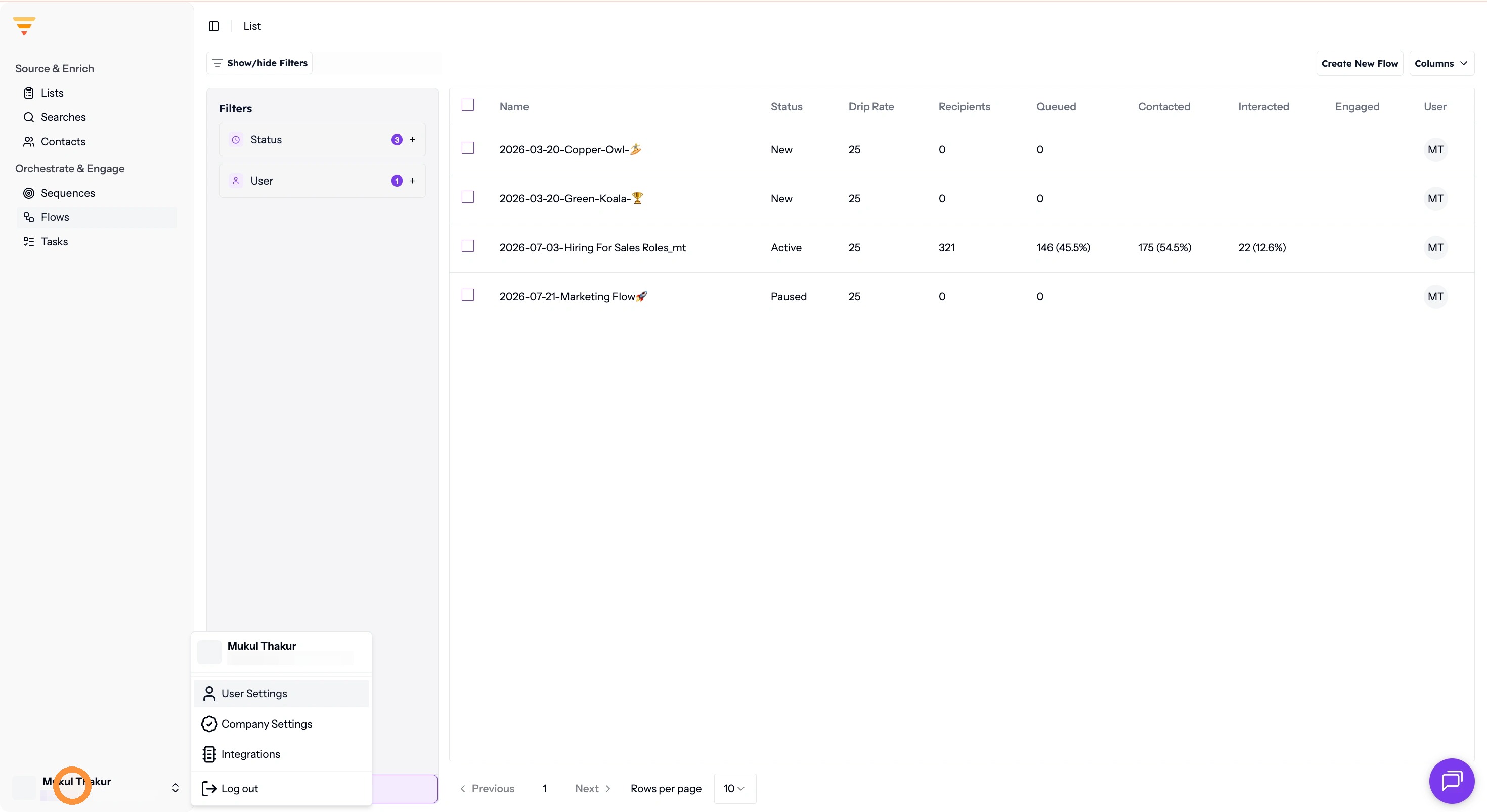
Your profile name in the sidebar -
Click User Settings.
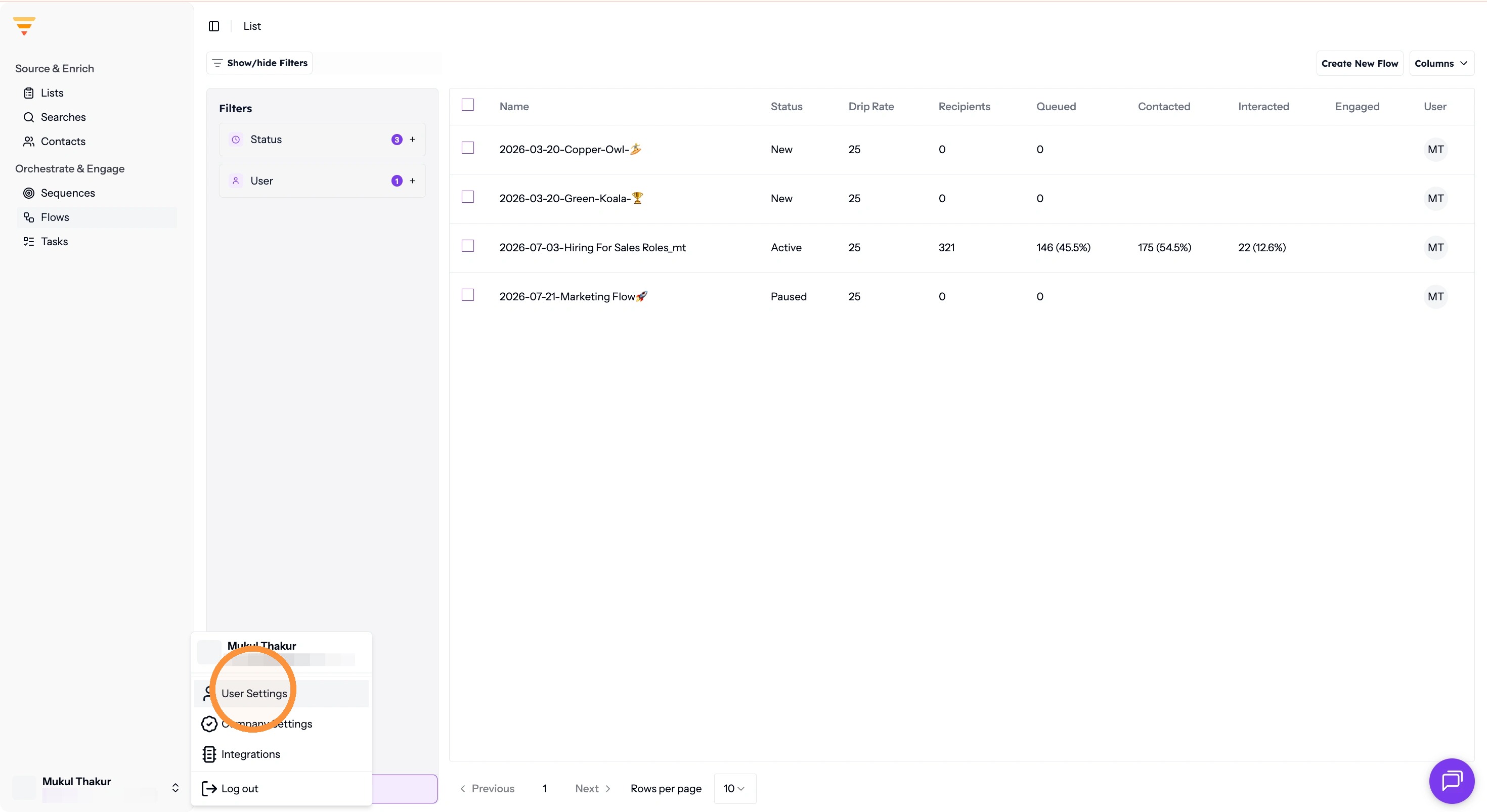
Opening User Settings -
Select the Mailbox tab.
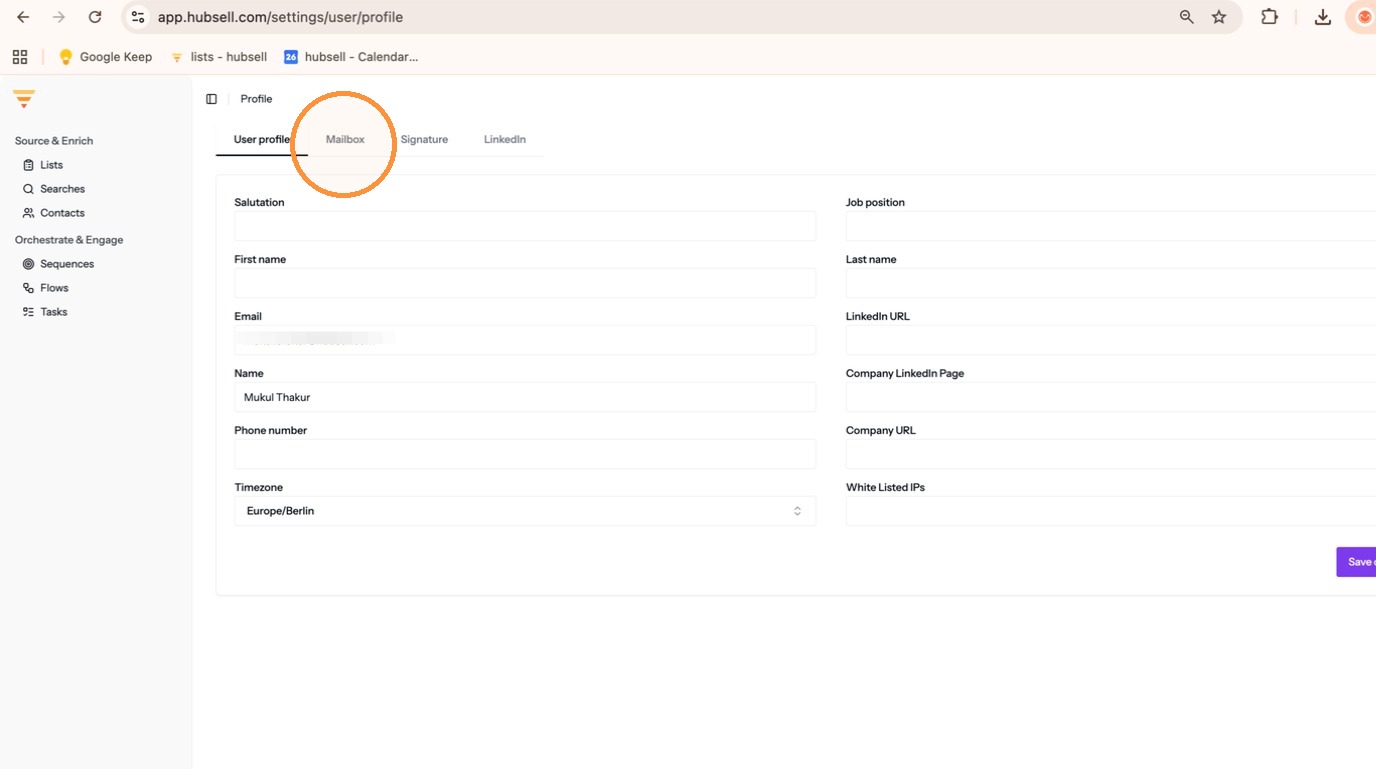
The Mailbox tab -
Select your email provider. For a Google account, click Sign in with Google.
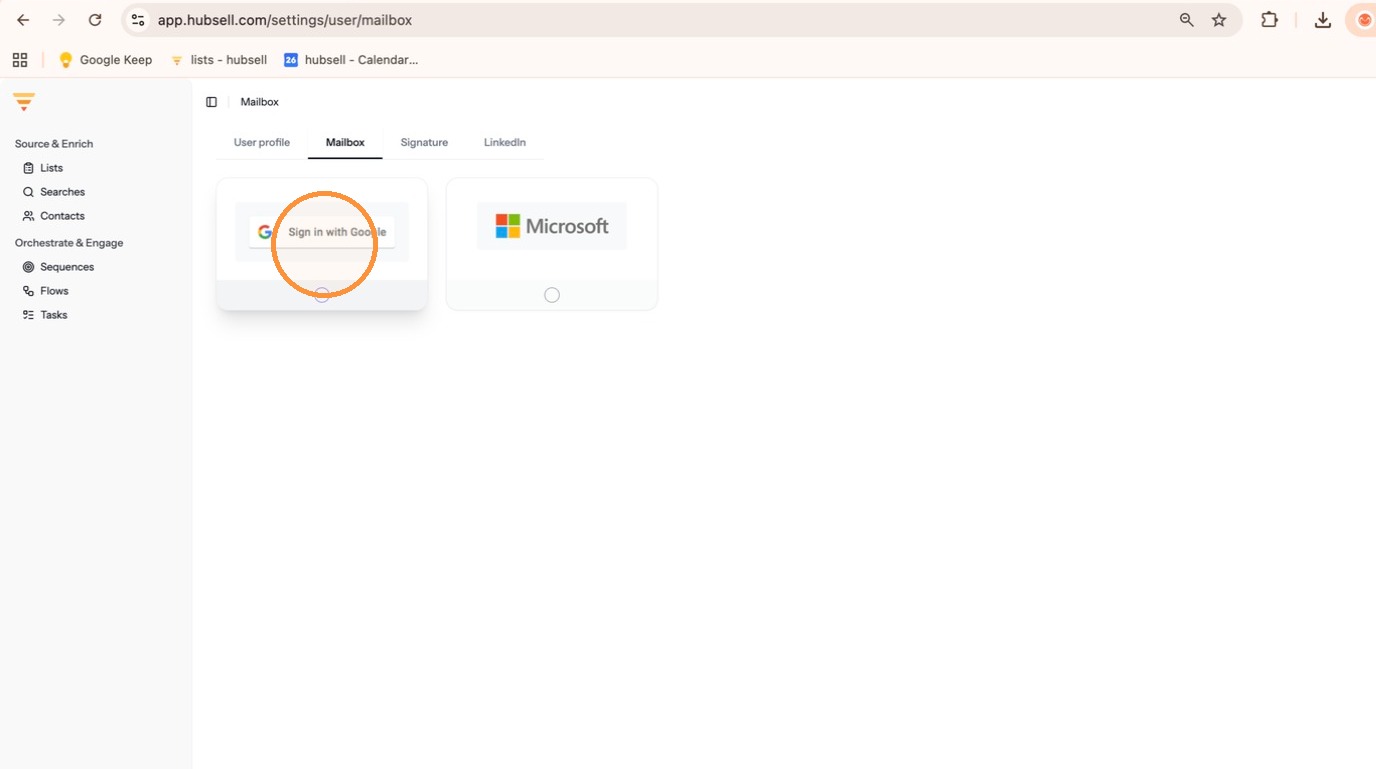
Choosing your email provider -
Select the Google account you want to connect.
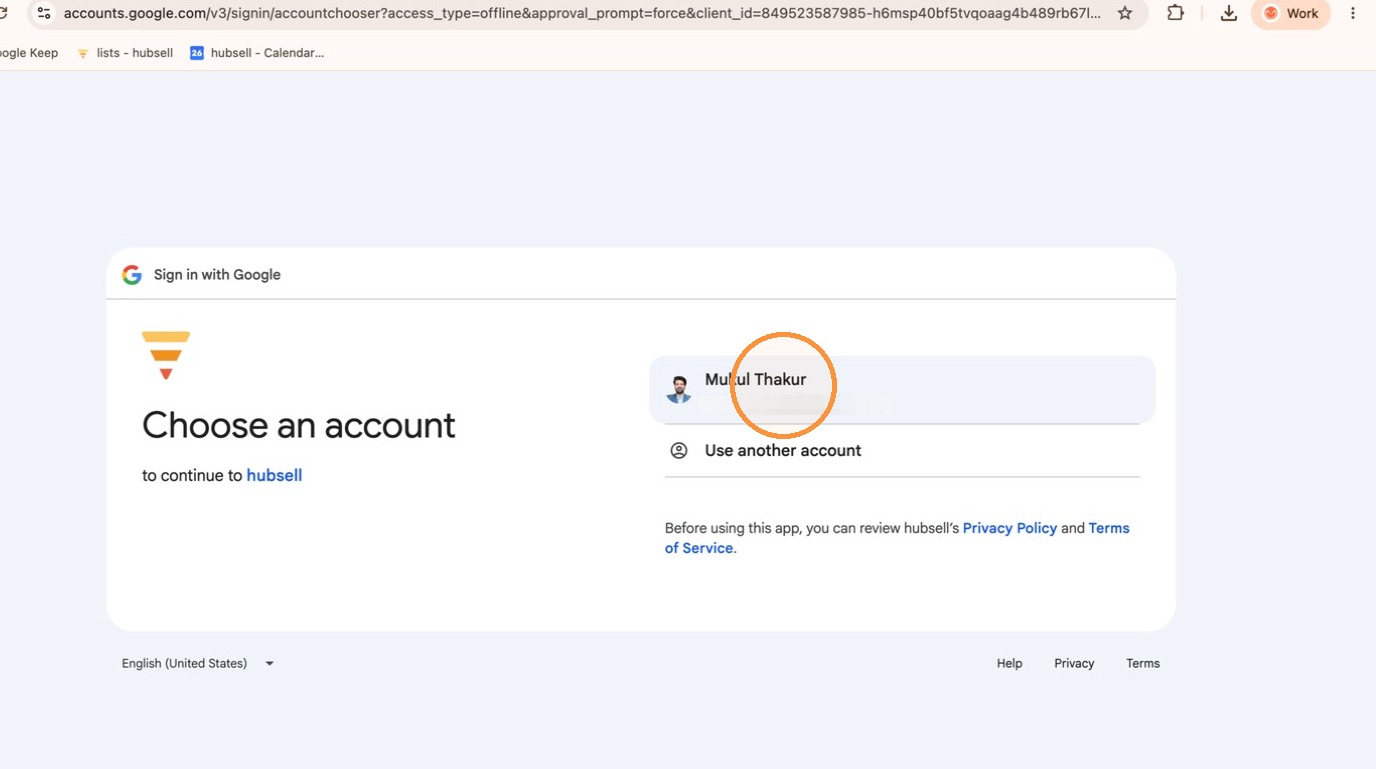
Selecting your account -
Click Continue.
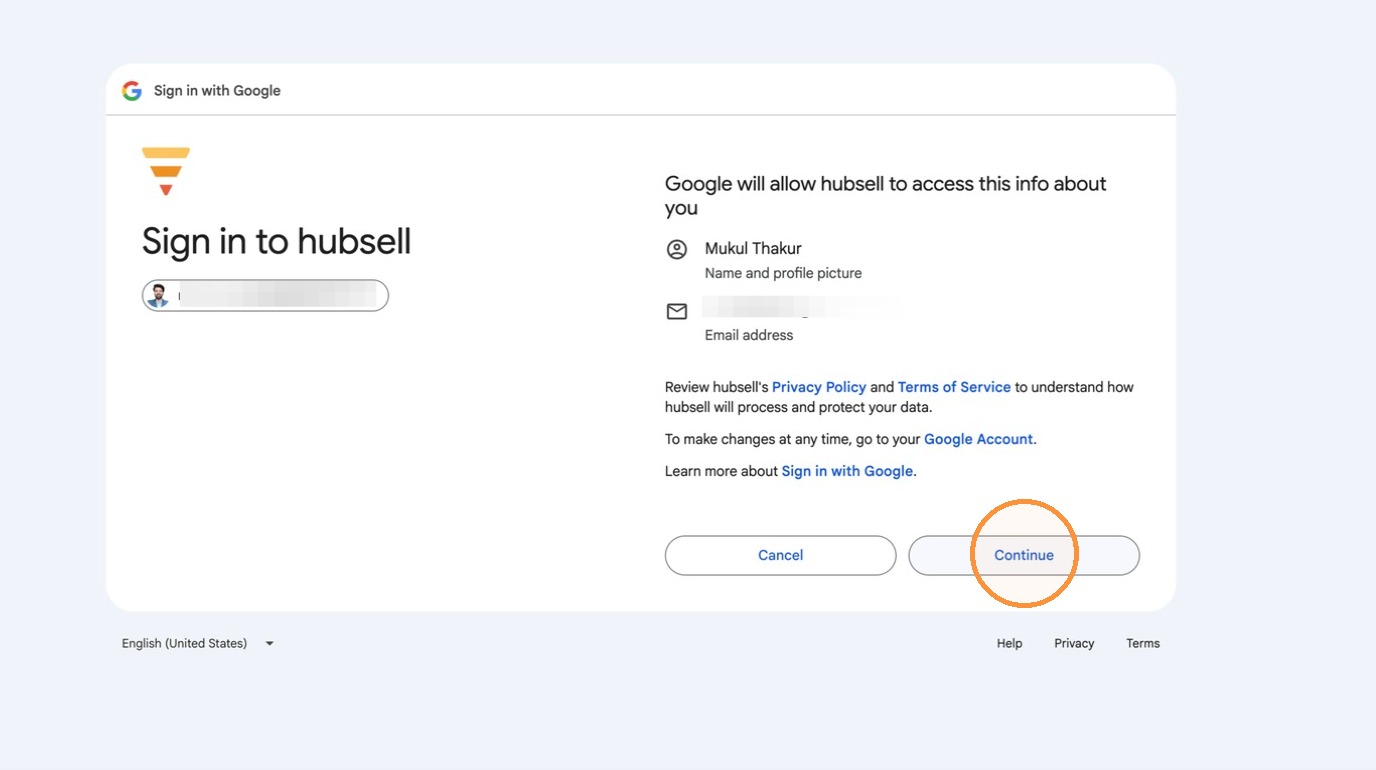
Continuing the sign in -
Click Allow to grant the permissions hubsell needs.
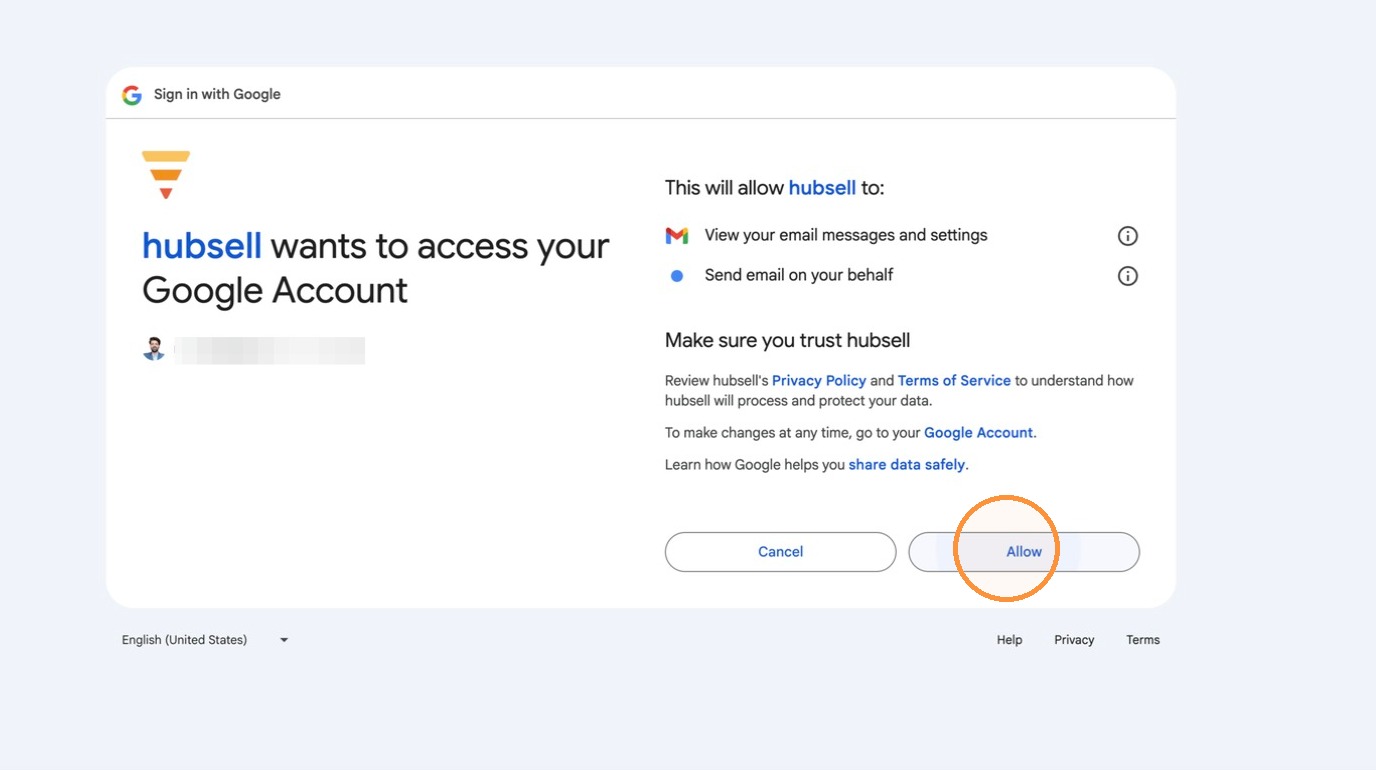
Granting permissions
Connect LinkedIn with the browser plugin
-
Still in User Settings, select the LinkedIn tab.
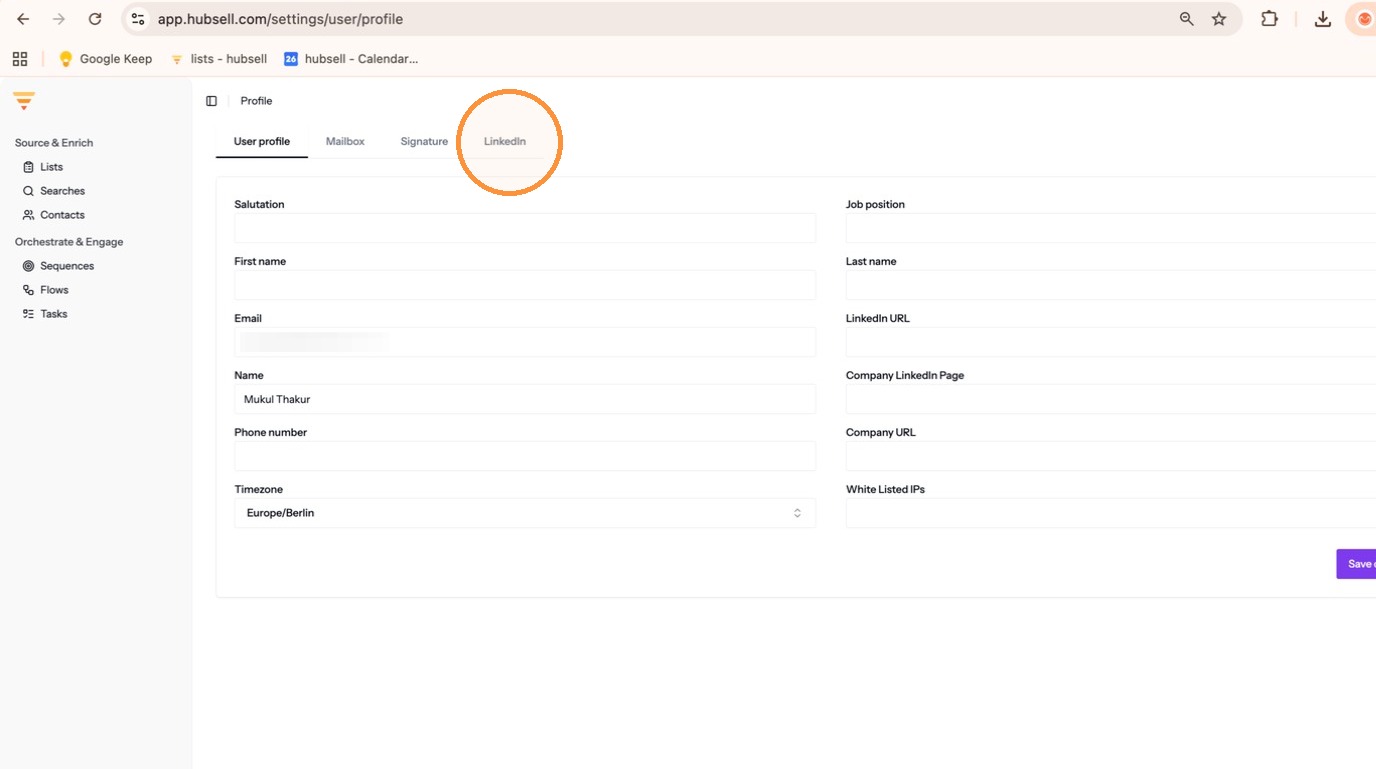
The LinkedIn tab -
Click Download Google Chrome extension.
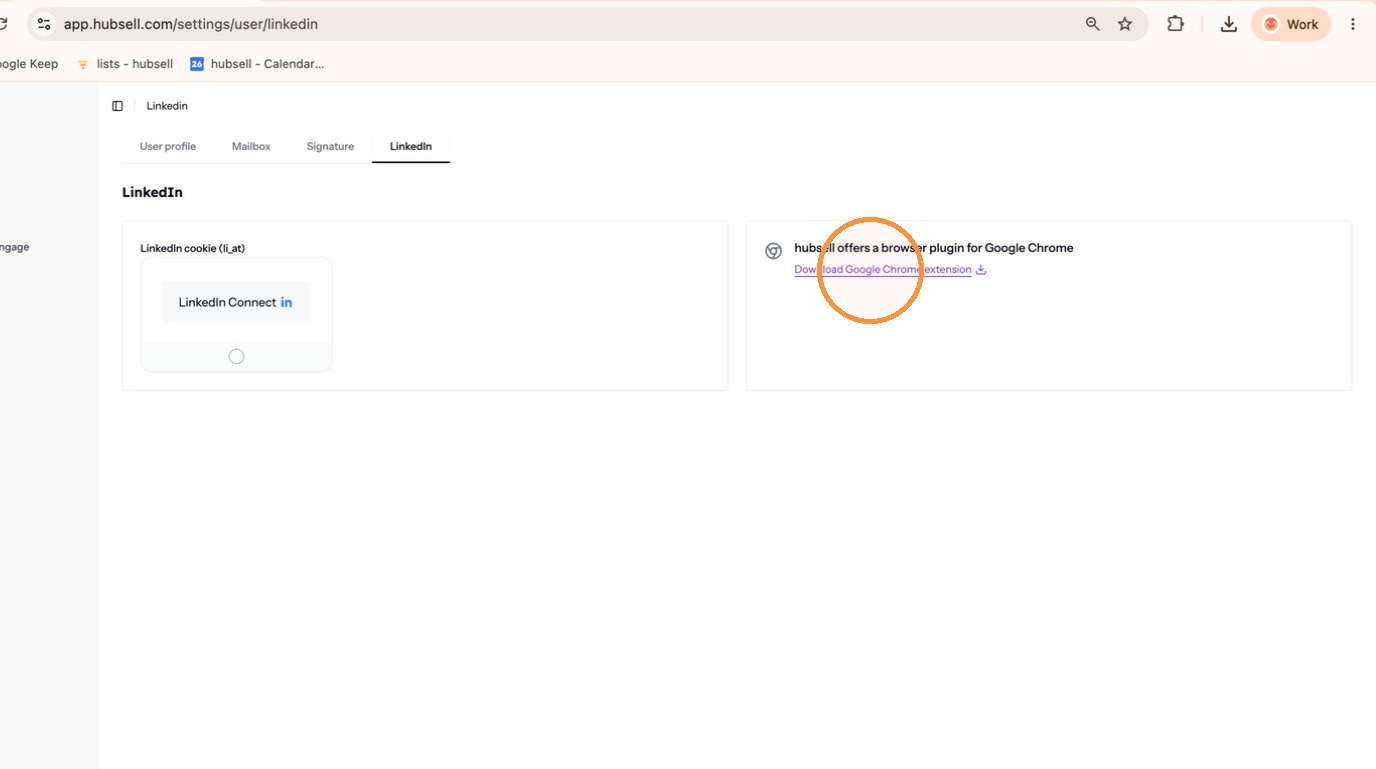
Downloading the extension -
Click Add to Chrome in the Chrome Web Store.
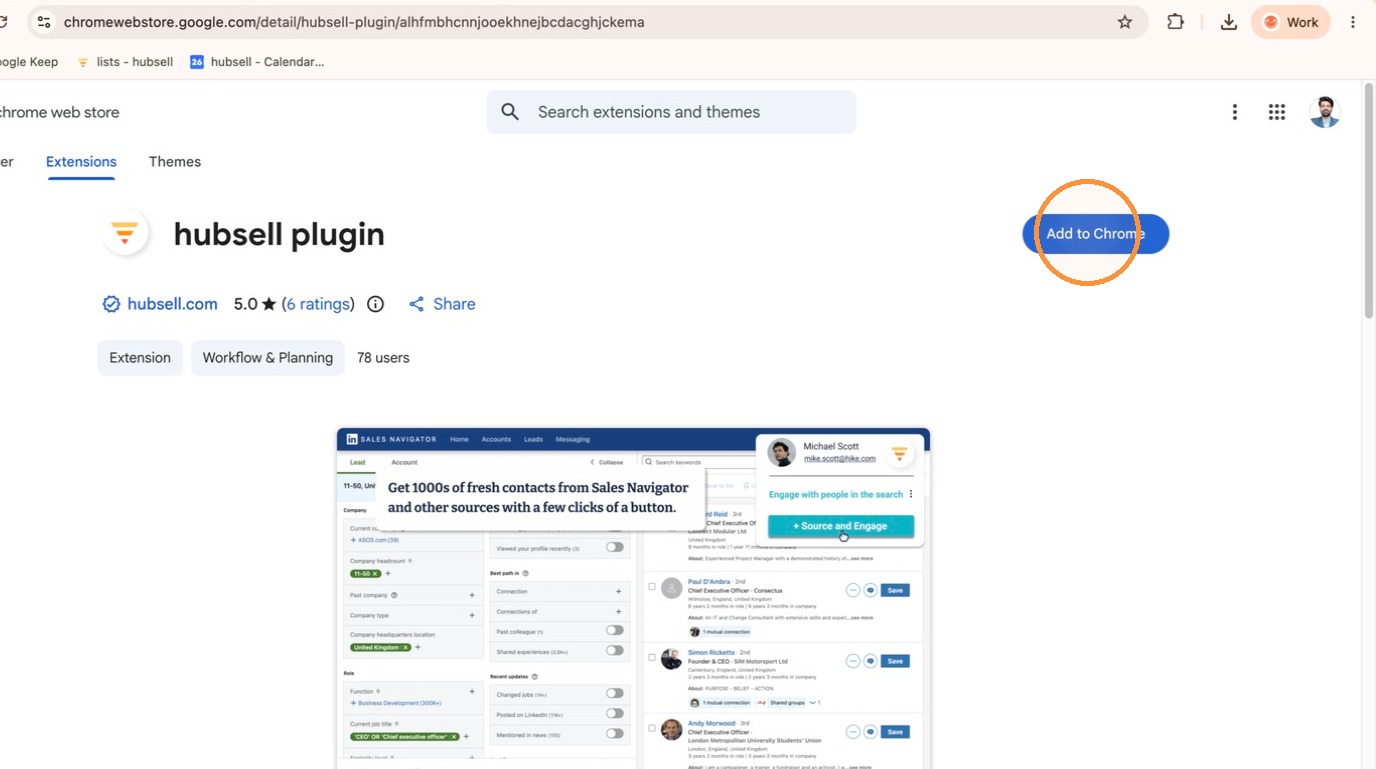
Adding the extension -
Click Add extension to confirm.
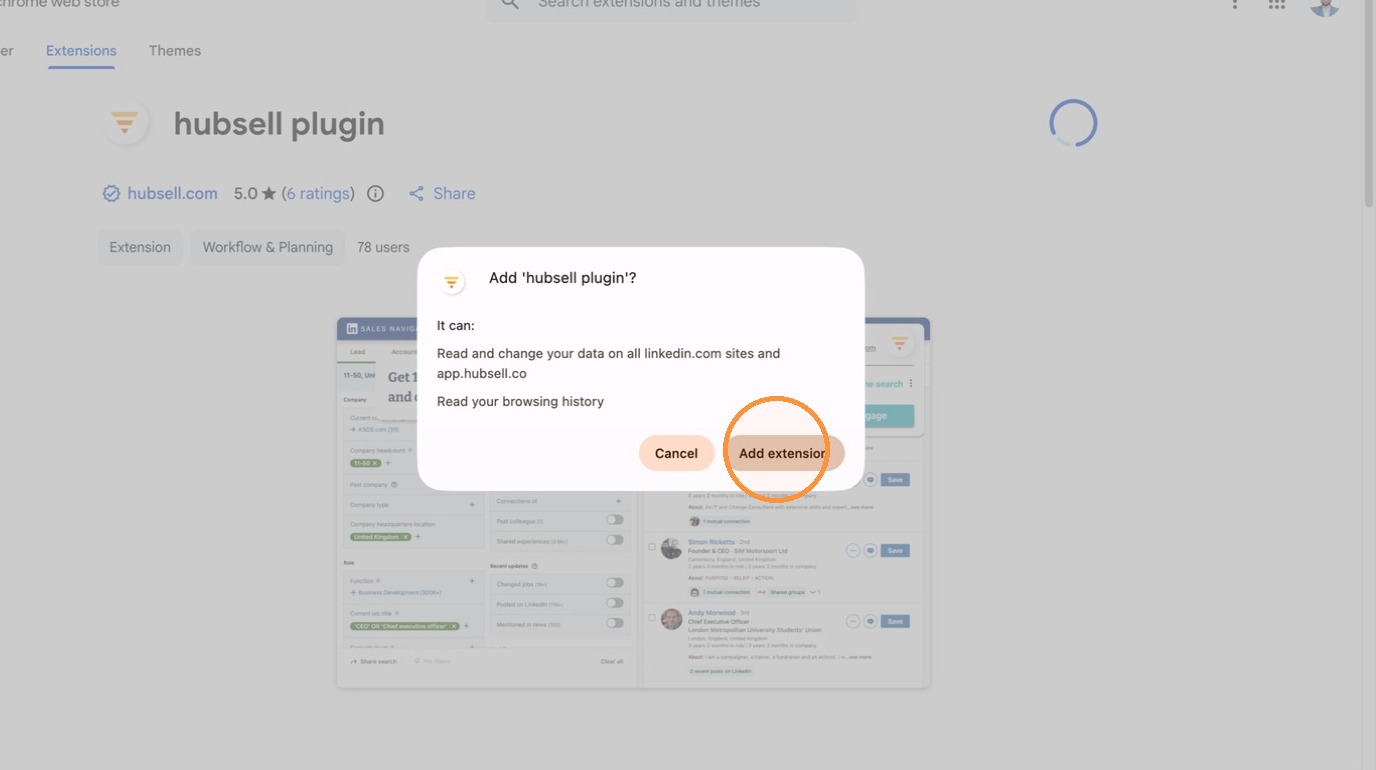
Confirming the install -
Open the hubsell plugin from the Extensions menu in your browser.
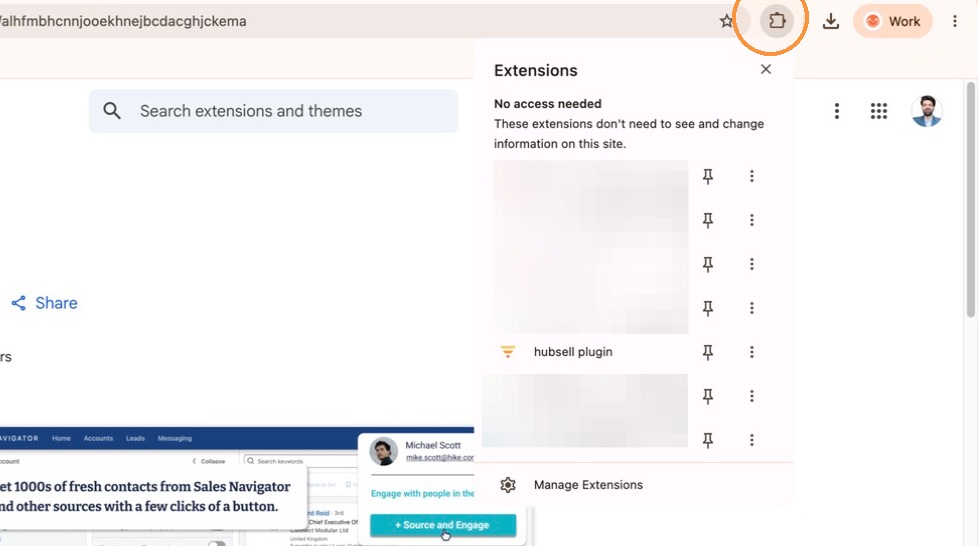
Opening the plugin -
Click Connect to LinkedIn in the plugin pop-up.
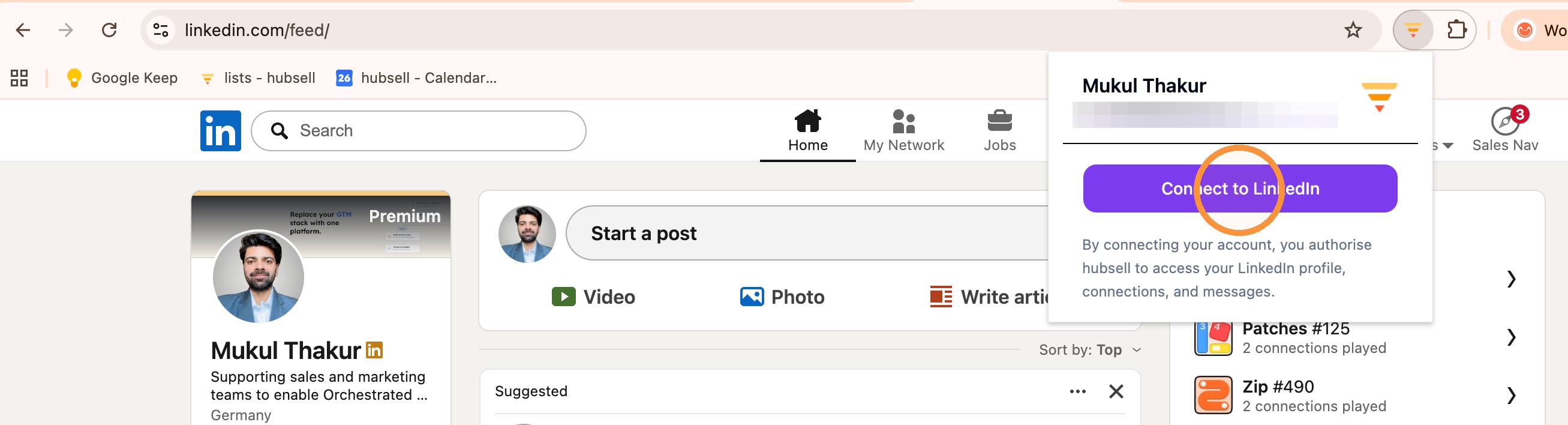
Connecting LinkedIn -
Refresh the hubsell page.
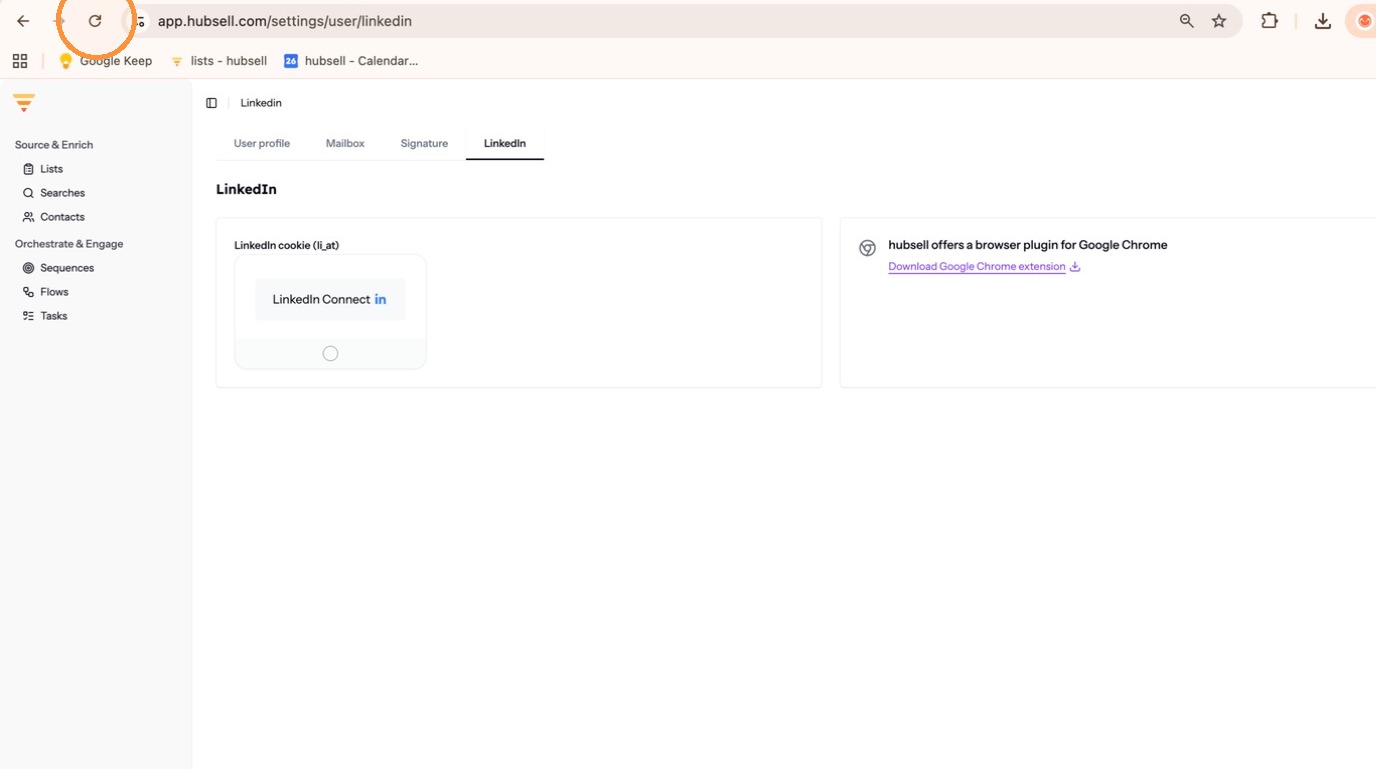
Refreshing to pick up the new status
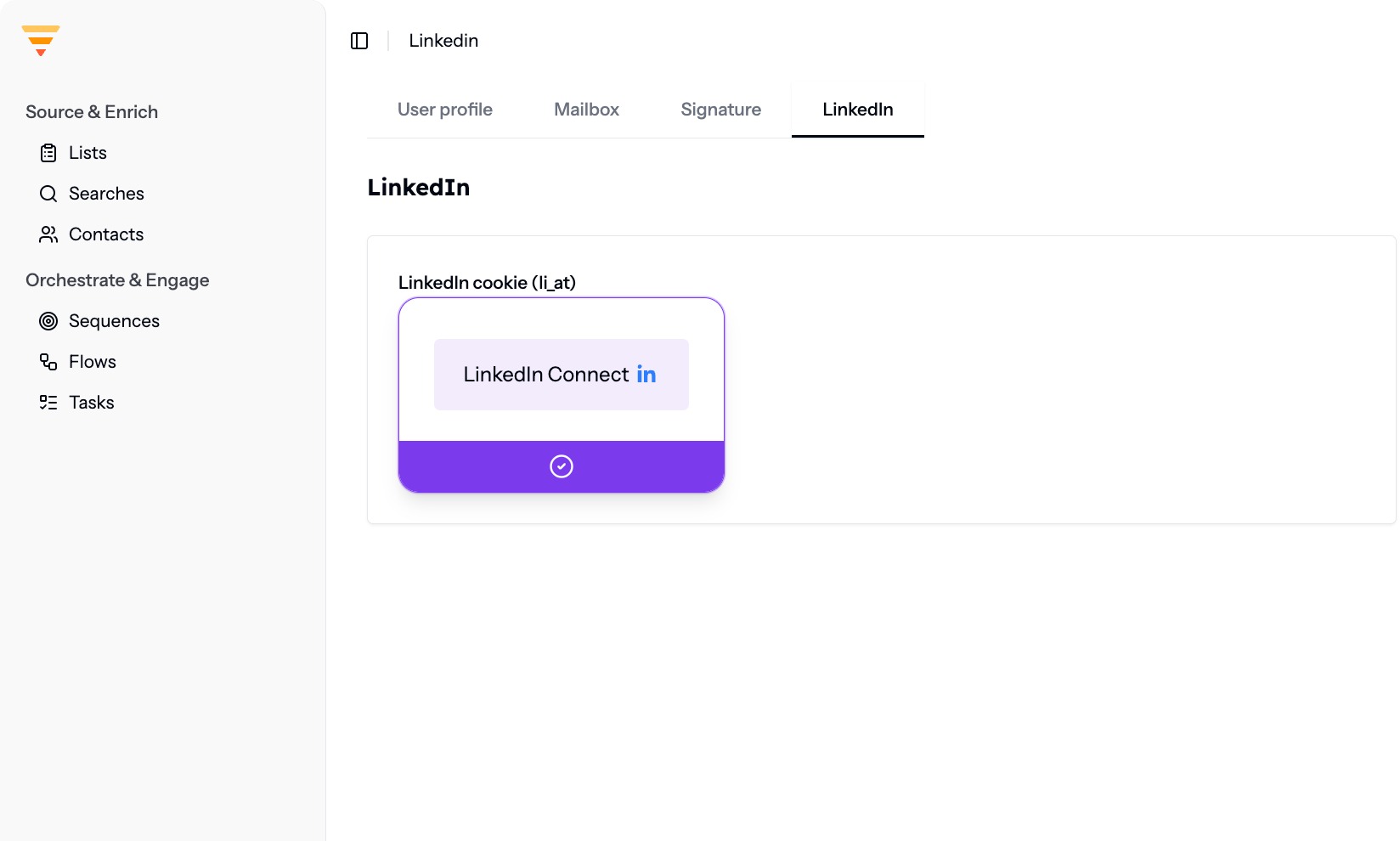
Both channels are connected. The Mailbox tab shows your connected email address and the LinkedIn tab shows LinkedIn as connected, so hubsell can send email and run LinkedIn actions on your behalf.
Interactive walkthrough
Click through every step at your own pace.
The walkthrough loads from Scribe only after you click, so nothing third party runs on the page until then.
Common questions
Which mailboxes does hubsell support?
Google and Microsoft. The steps below show the Google flow. Microsoft follows the same path, with the Microsoft sign in screen instead.
How does hubsell connect to LinkedIn?
Through the hubsell Chrome extension. You install it from the LinkedIn tab in User Settings, then click Connect to LinkedIn in the plugin.
LinkedIn still shows as not connected. What do I do?
Refresh the hubsell page. The status only updates on reload.
Related articles
- Set up your personal and company accountComplete your personal profile and your company profile in hubsell. It takes about two minutes and gets both ready before you connect a mailbox.
- Source data into hubsellGet contacts into a hubsell list from a LinkedIn or Sales Navigator search, or from a CSV file, then tag and enrich them ready for outreach.
- Connect your CRM accountConnect HubSpot, Salesforce or Pipedrive to hubsell so you can push contacts across when you are ready.
- Create a flowBuild your first multichannel flow in hubsell: triggers, branches, LinkedIn and email steps, wait times, sending limits, and launch.