

Set up your personal and company account
Complete your personal profile and your company profile in hubsell. It takes about two minutes and gets both ready before you connect a mailbox.
- Applies to
- All plans
- Before you start
- A hubsell account you can log in to at app.hubsell.com.
Your account details identify you across hubsell and show up in parts of your outreach, so filling them in now keeps your later campaigns looking right.
Complete your user details
-
Click your username at the bottom of the left sidebar.
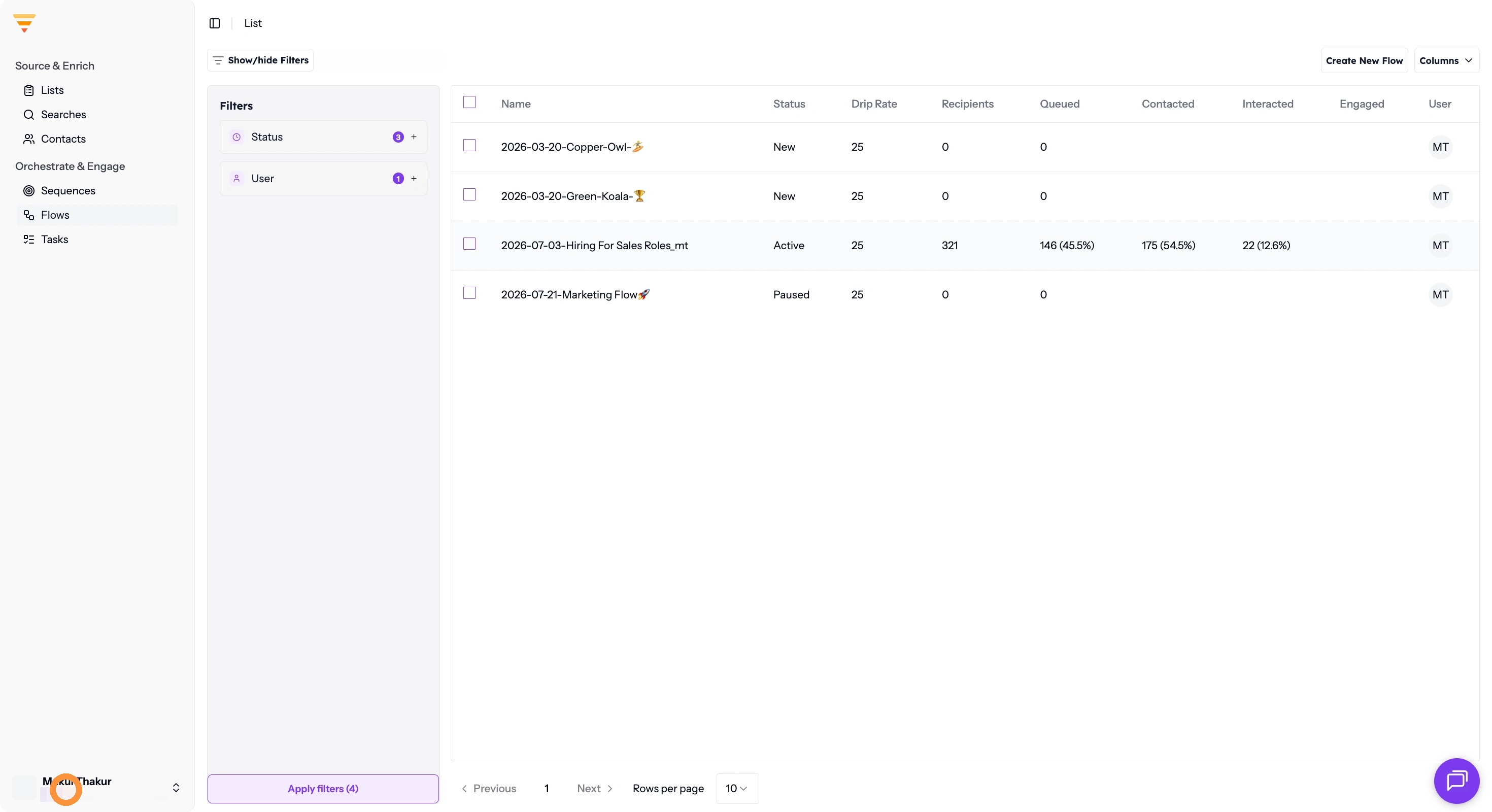
Your username at the bottom of the sidebar -
Click User Settings.
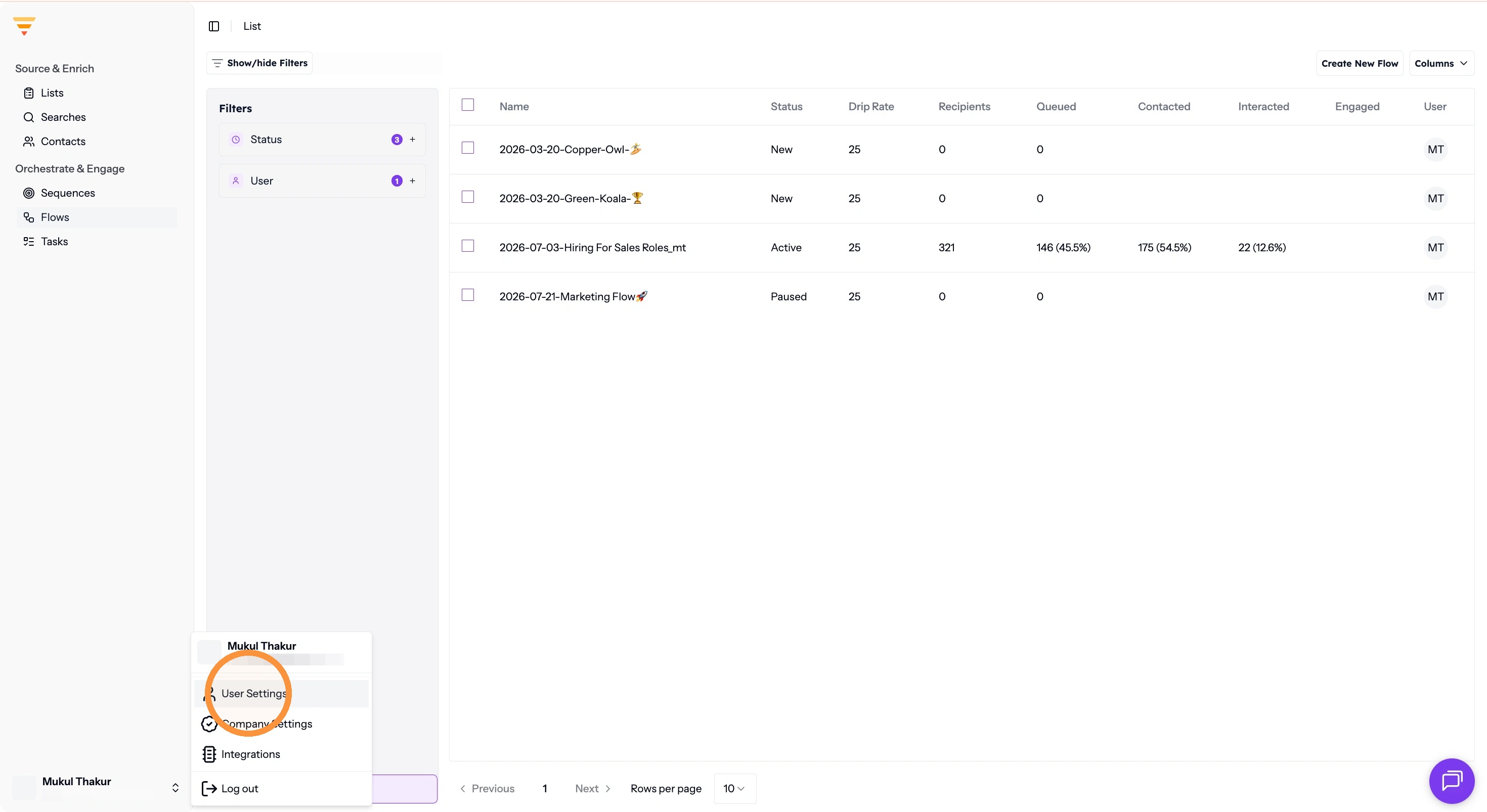
Opening User Settings -
Fill in your personal details in the form fields.
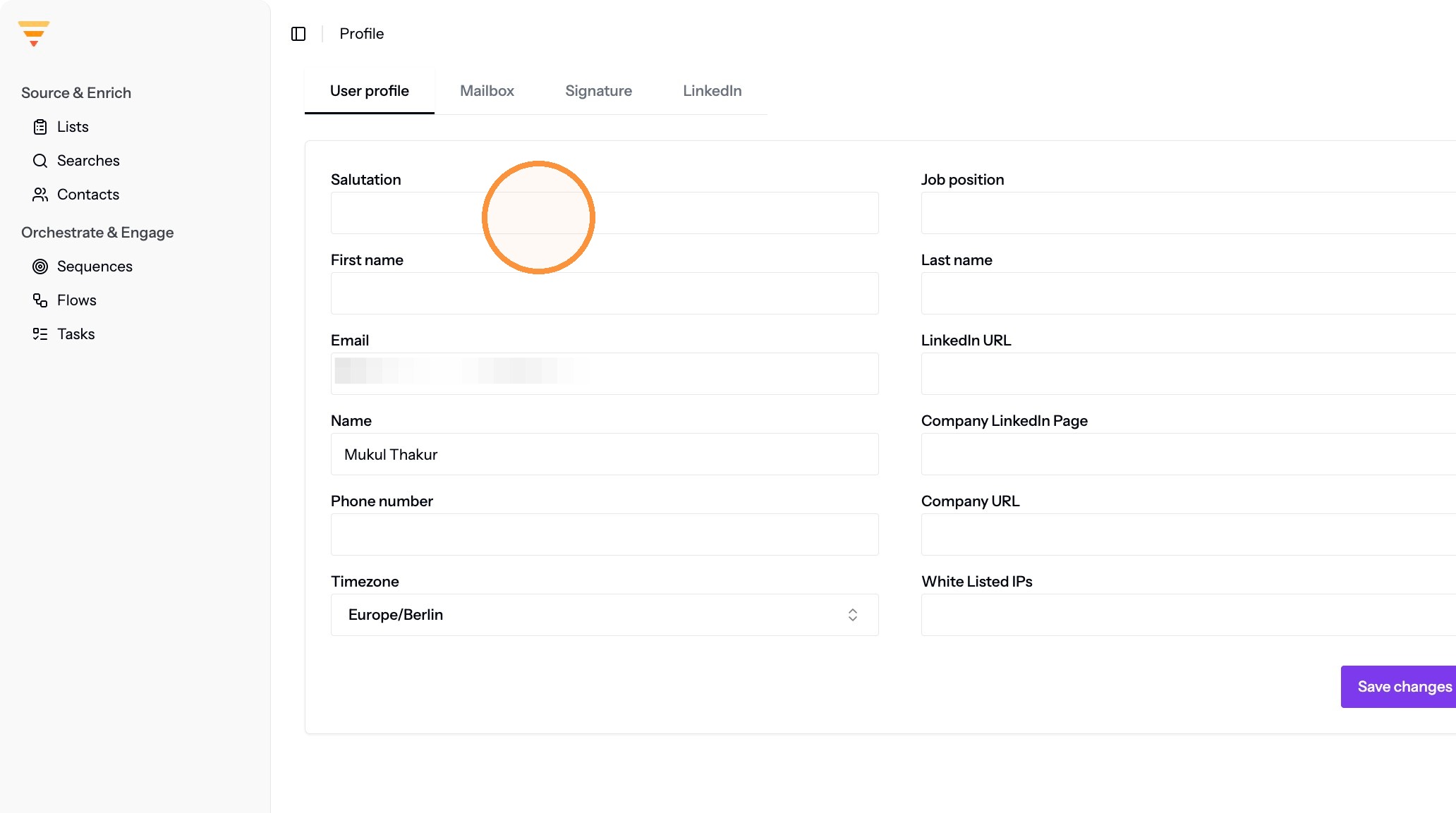
The personal details form -
Click Save changes.
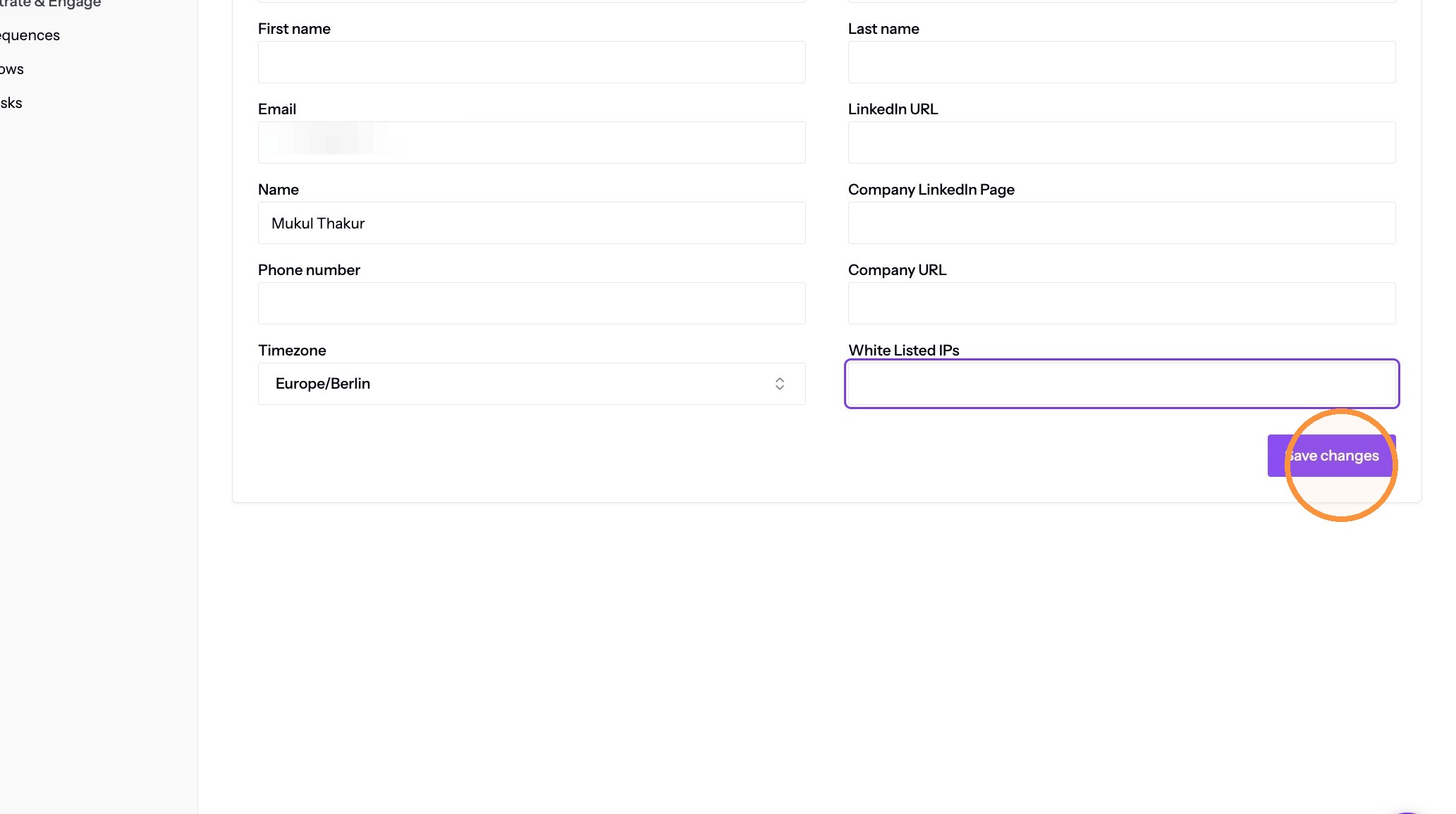
Saving your personal details
Complete your company details
-
Click your username at the bottom of the left sidebar again.
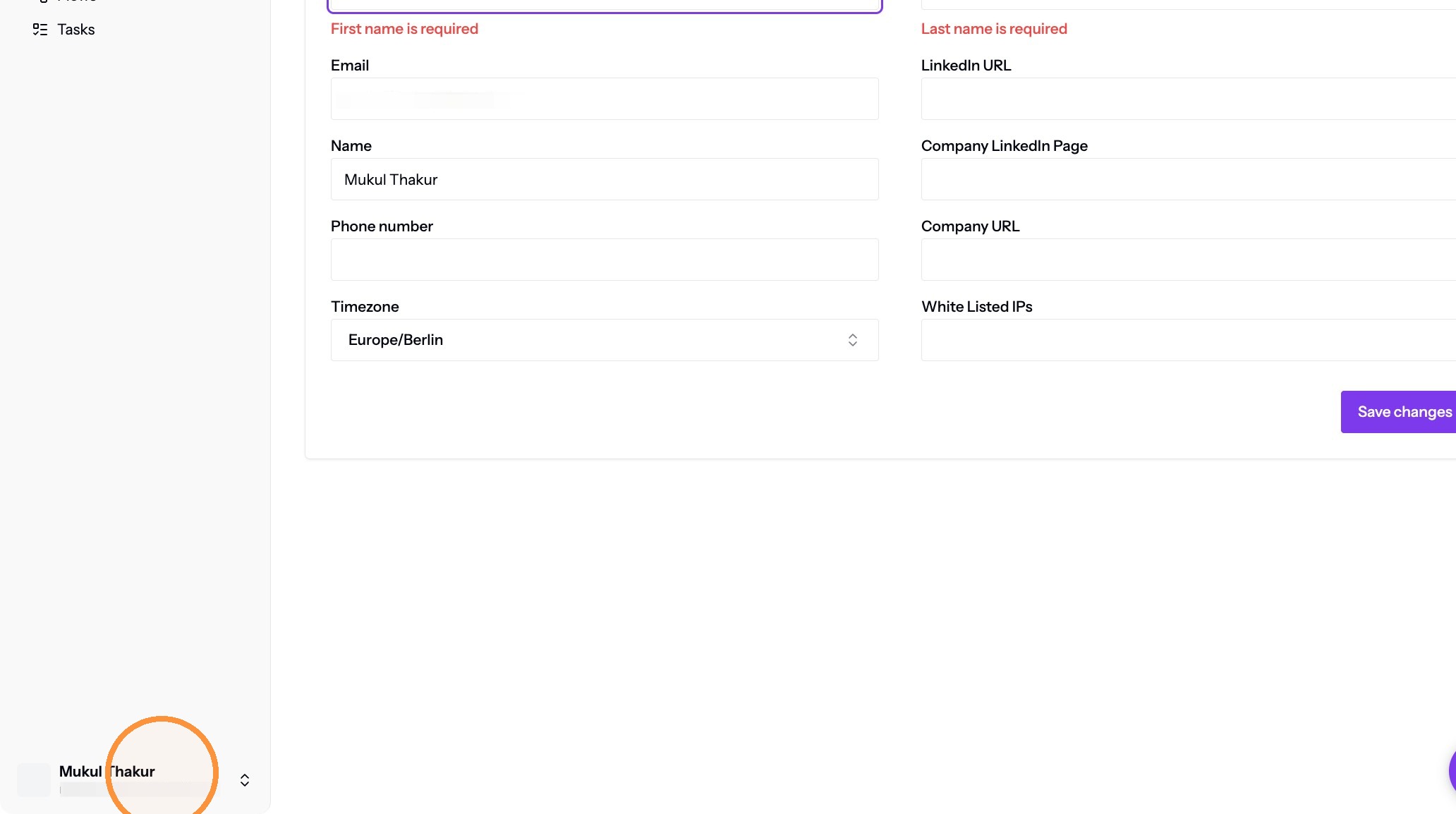
Back to the profile menu -
Click Company Settings.
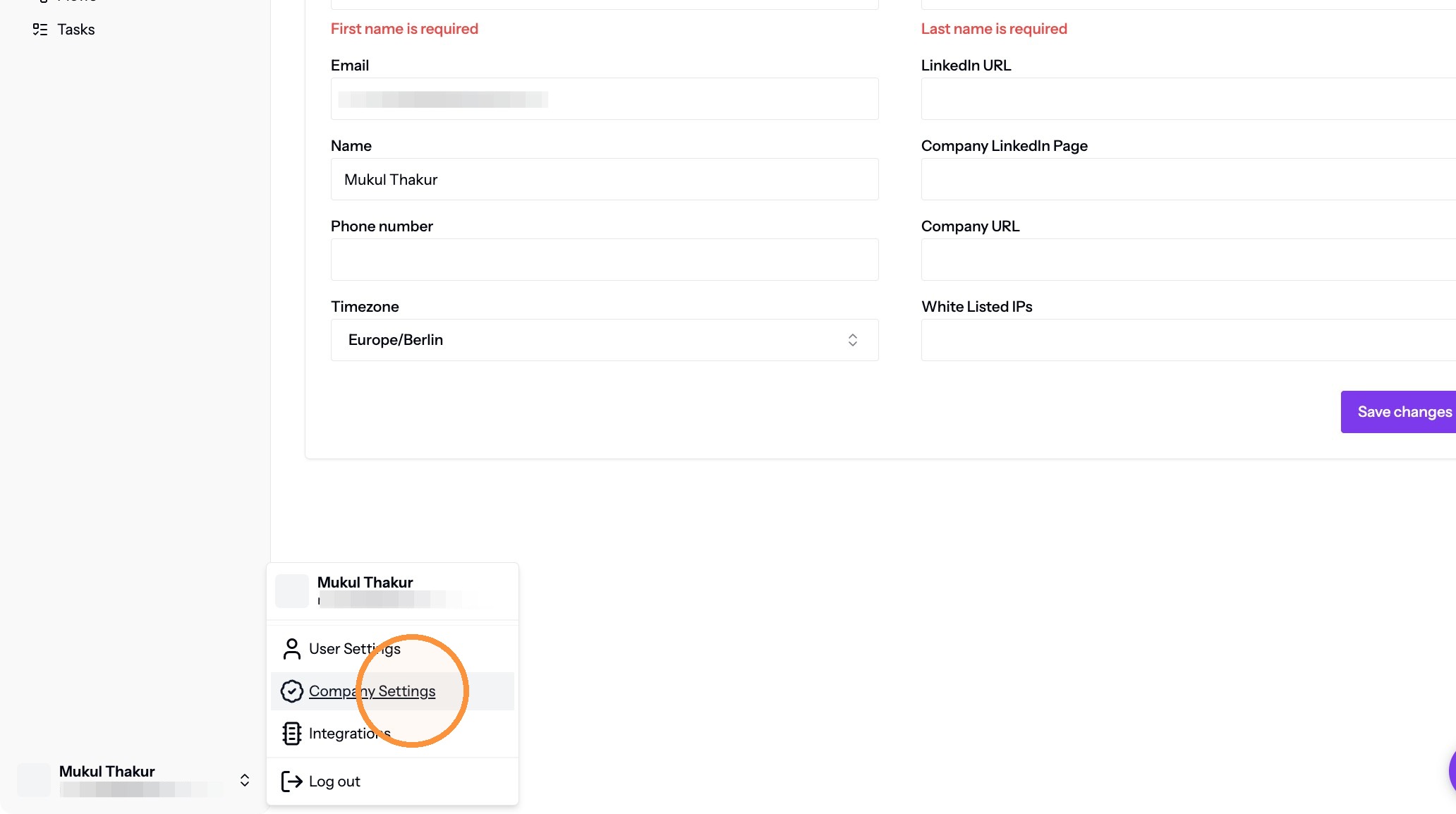
Opening Company Settings -
Fill in the fields on the Company information tab.
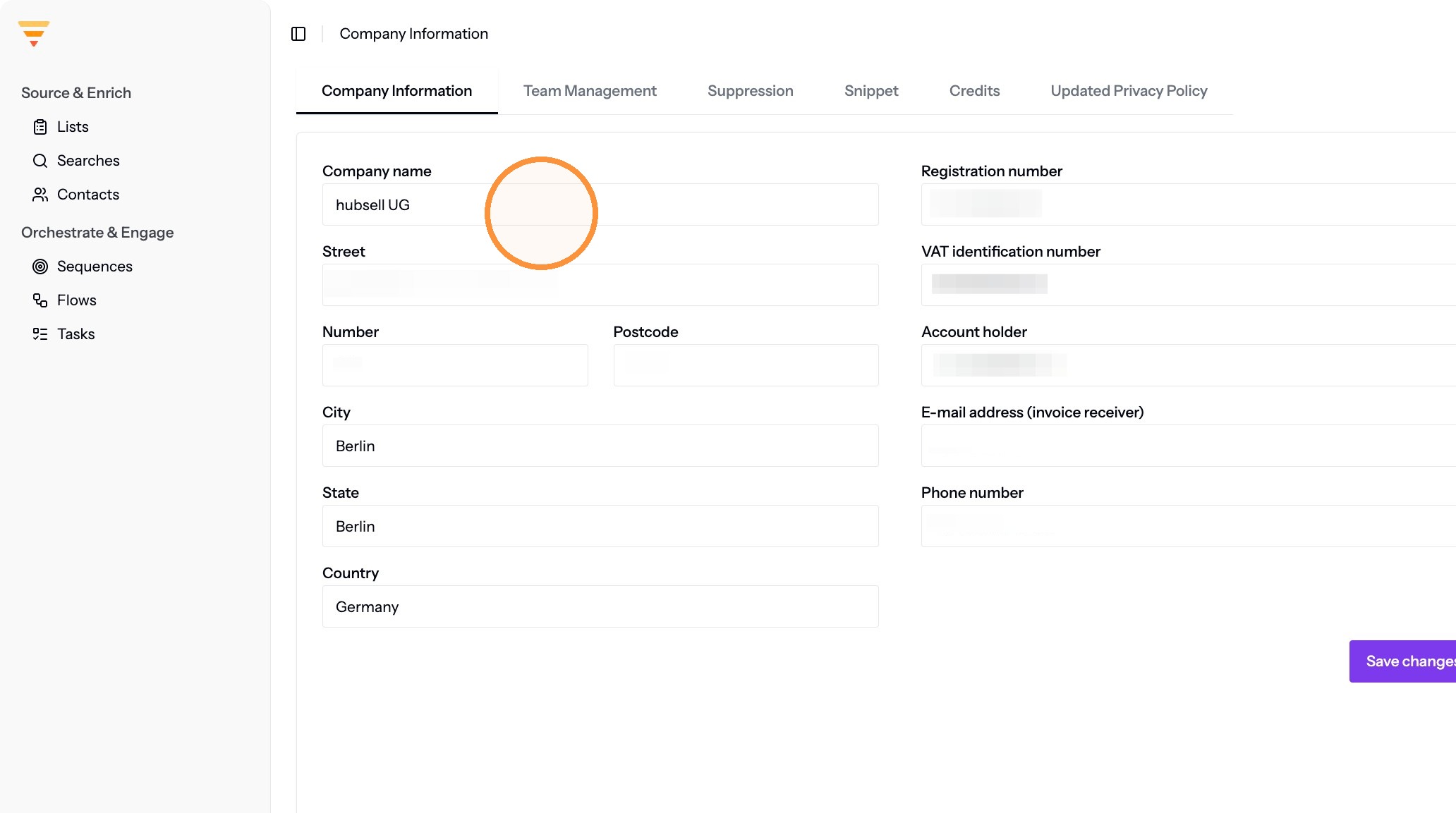
The Company information tab -
Click Save changes.
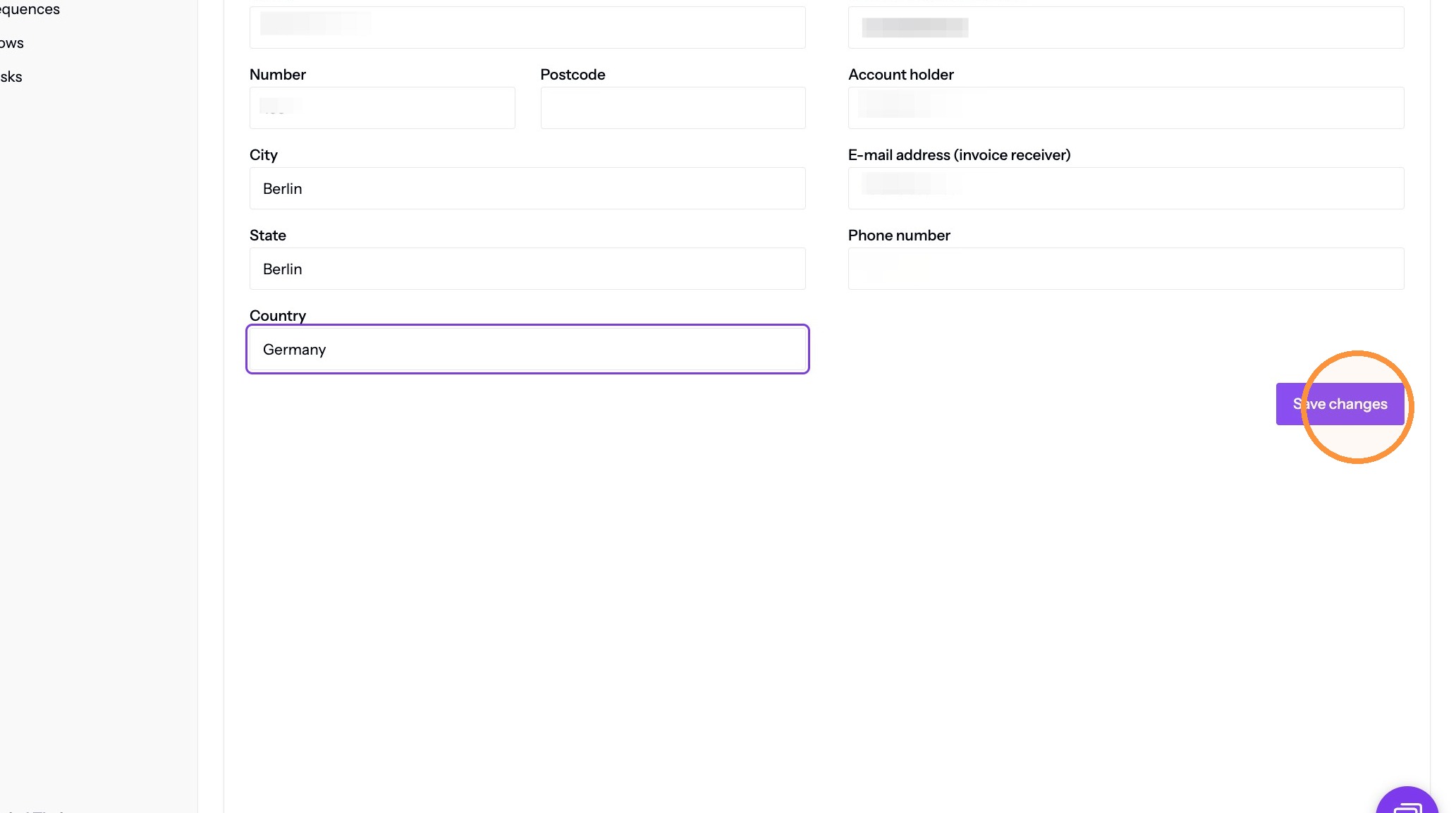
Saving your company details
Both profiles are saved. Reopen User Settings and Company Settings and your details are still there. Your account is ready for the next step, connecting your mailbox and LinkedIn.
Interactive walkthrough
Click through every step at your own pace.
The walkthrough loads from Scribe only after you click, so nothing third party runs on the page until then.
Related articles
- Connect your mailbox and LinkedInConnect the mailbox and LinkedIn account hubsell sends from, so it can send email and run LinkedIn actions for you.
- Source data into hubsellGet contacts into a hubsell list from a LinkedIn or Sales Navigator search, or from a CSV file, then tag and enrich them ready for outreach.
- Connect your CRM accountConnect HubSpot, Salesforce or Pipedrive to hubsell so you can push contacts across when you are ready.
- Create a flowBuild your first multichannel flow in hubsell: triggers, branches, LinkedIn and email steps, wait times, sending limits, and launch.