

Connect your CRM account
Connect HubSpot, Salesforce or Pipedrive to hubsell so you can push contacts across when you are ready.
- Applies to
- All plans
- Before you start
- A CRM account with permission to authorise a new integration.
Supported CRMs are HubSpot, Salesforce and Pipedrive. Once connected, the sync runs in real time.
Connect your CRM
-
Click the profile menu in the bottom left corner and select Integrations.
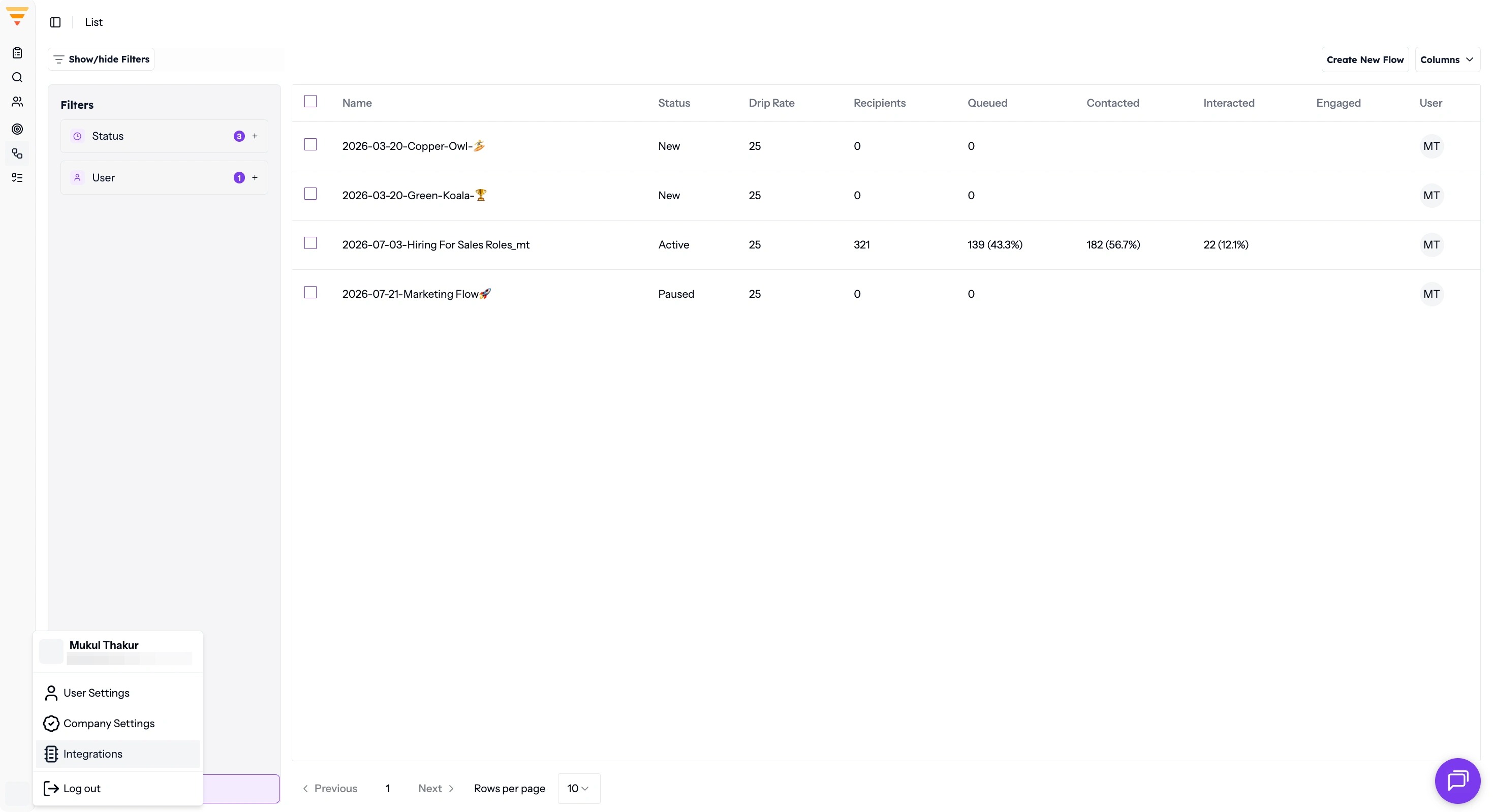
Opening Integrations -
Select the CRM you want to connect.
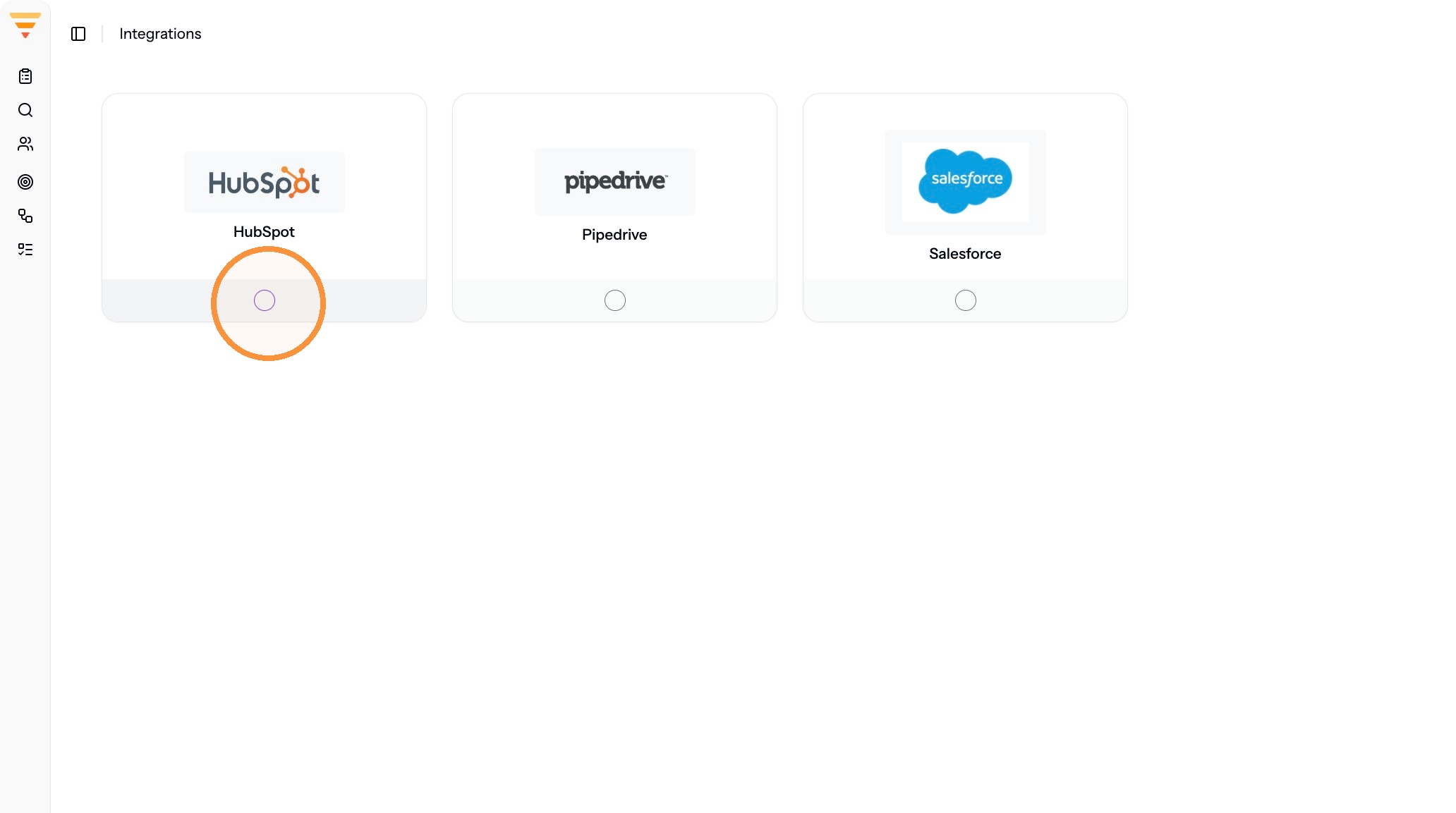
Choosing your CRM -
hubsell sends you to your CRM. Grant the permissions it asks for to authorise the connection.
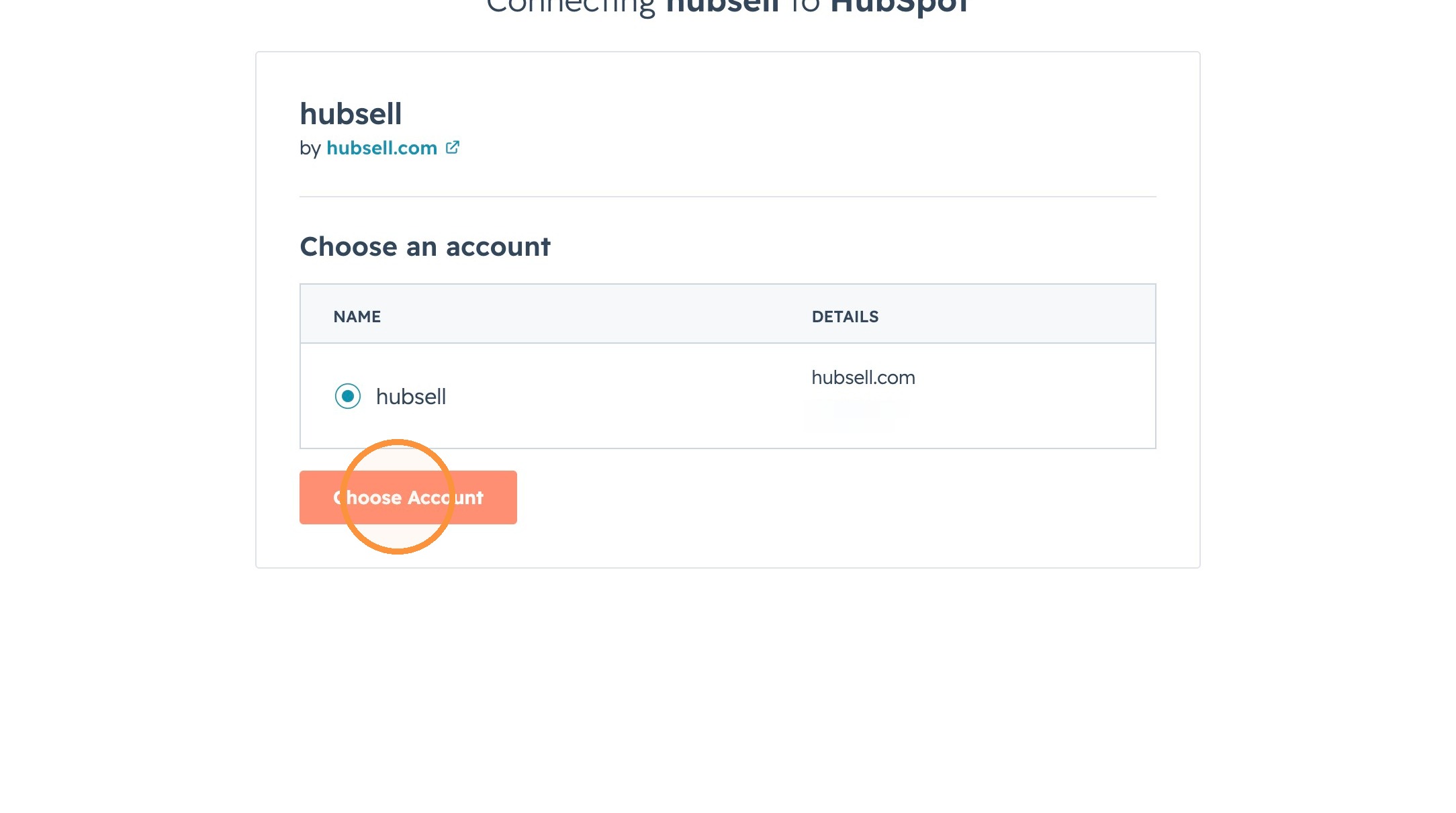
Authorising the connection -
Go back to hubsell and refresh the Integrations page.
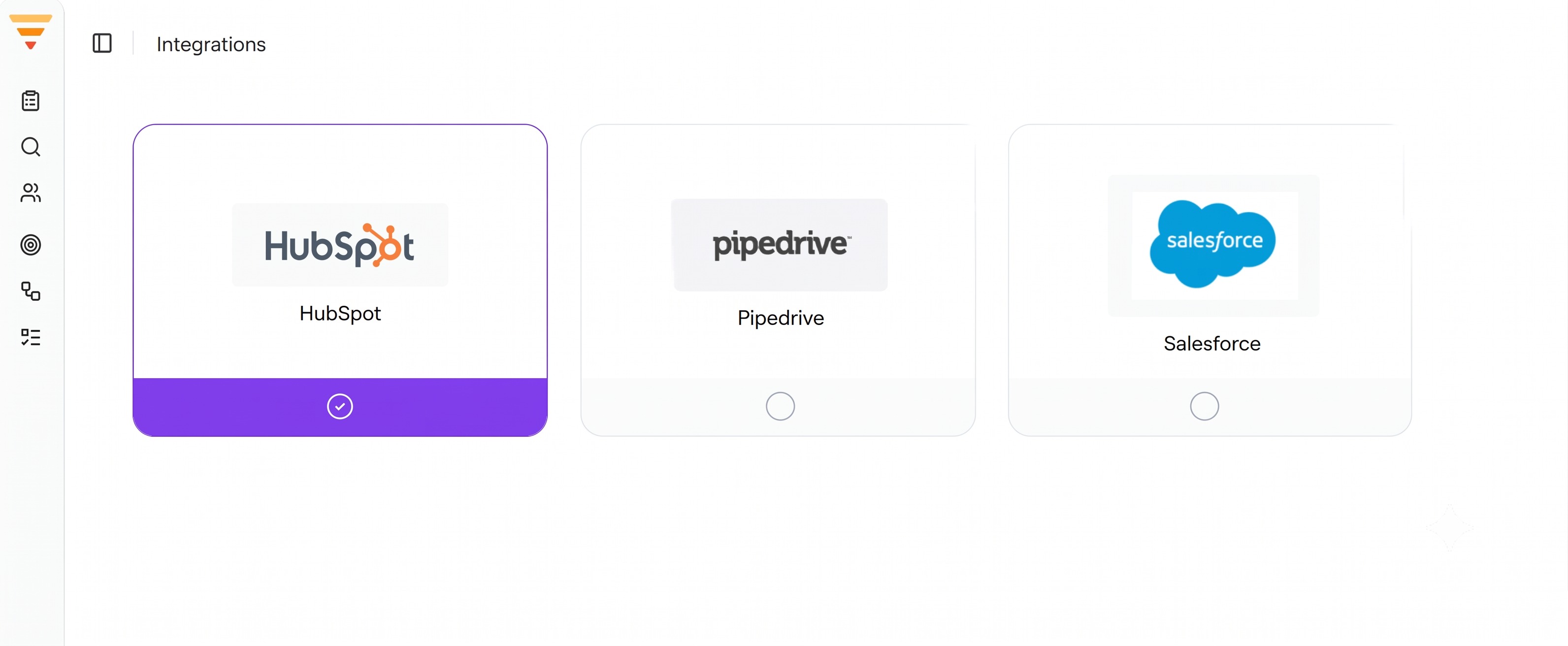
Your CRM connected
Your CRM is connected. The Integrations page shows it as connected, and from here the sync runs in real time. Contacts are not sent across on their own, you choose when to push them.
Troubleshooting
- Contacts are not appearing in your CRM. Pushing contacts to the CRM is a manual action. Connecting the account does not push anything by itself, you have to trigger it.
Interactive walkthrough
Click through every step at your own pace.
The walkthrough loads from Scribe only after you click, so nothing third party runs on the page until then.
Common questions
Which CRMs does hubsell support?
HubSpot, Salesforce and Pipedrive. Once connected, the sync runs in real time.
Does connecting my CRM push contacts across automatically?
No. Pushing contacts to your CRM is a manual action. Connecting the account does not send anything on its own, you choose when to push.
The Integrations page still shows my CRM as not connected. What do I do?
Refresh the page. The status only updates on reload.
Related articles
- Set up your personal and company accountComplete your personal profile and your company profile in hubsell. It takes about two minutes and gets both ready before you connect a mailbox.
- Connect your mailbox and LinkedInConnect the mailbox and LinkedIn account hubsell sends from, so it can send email and run LinkedIn actions for you.
- Source data into hubsellGet contacts into a hubsell list from a LinkedIn or Sales Navigator search, or from a CSV file, then tag and enrich them ready for outreach.
- Create a flowBuild your first multichannel flow in hubsell: triggers, branches, LinkedIn and email steps, wait times, sending limits, and launch.